The following describes the software update process for the NetHSM system software.
This installation method should only be used if the update described in Software Update is not available.
Follow the instructions precisely to prevent any accidental deletion of data.
It’s recommended to export a backup from the NetHSM before performing the update.
The system software update can be performed as follows.
Download the installer image ending with installer.img.zip from the provided private download page.
Unpack the installer image.
Write the installer image to a USB flash drive.
For this you could use the graphical tool balenaEtcher.
On Linux you could also use the command line tool dd.
Ignore any warning that a partition table is missing.
Connect the USB flash drive to any USB port on the front or one of the two USB 2.0 ports located in the center of the back of the machine.
The USB 2.0 ports have a black insert in the middle of the port.
Note
Some USB drives are incompatible with the NetHSM.
This results in the NetHSM not recognizing them as a boot media.
In case the NetHSM does not boot from the connected USB drive, try a different USB drive model.
Turn off the NetHSM and disconnect it from power.
Connect a monitor and optionally a keyboard to the NetHSM.
Note
Make sure you only have the keyboard and the flash drive connected to the USB ports.
Connect the NetHSM to power and wait for 10 seconds.
Turn on the NetHSM by pressing the power button on the front.
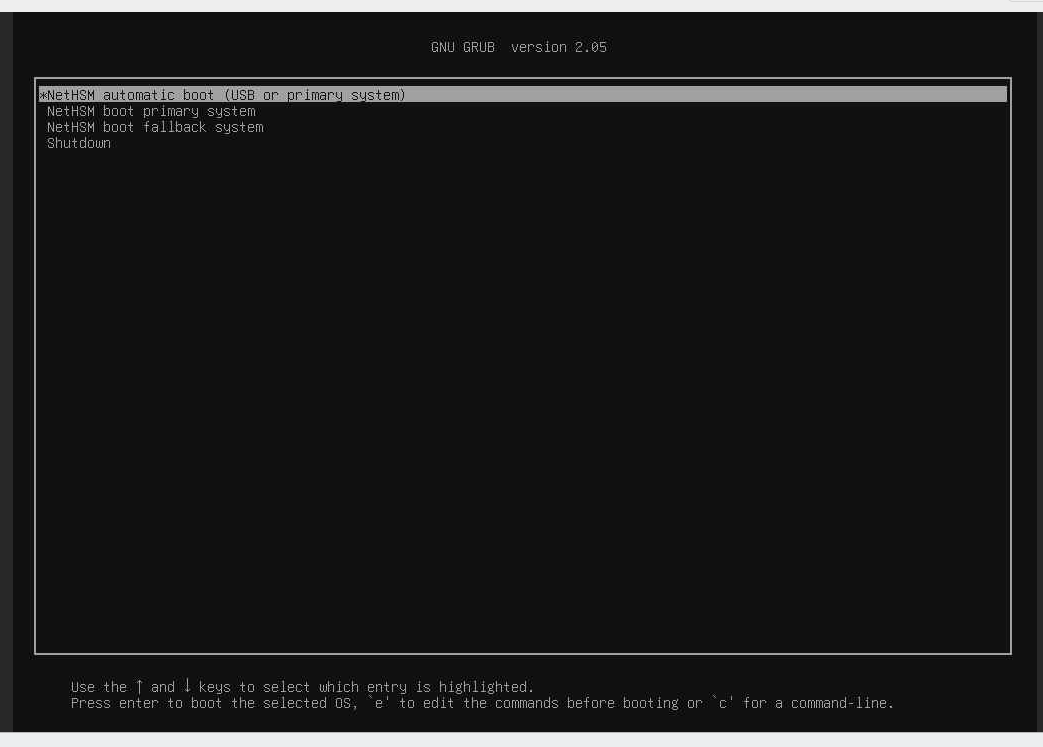
After about 30 seconds the NetHSM will show a boot menu on the monitor.
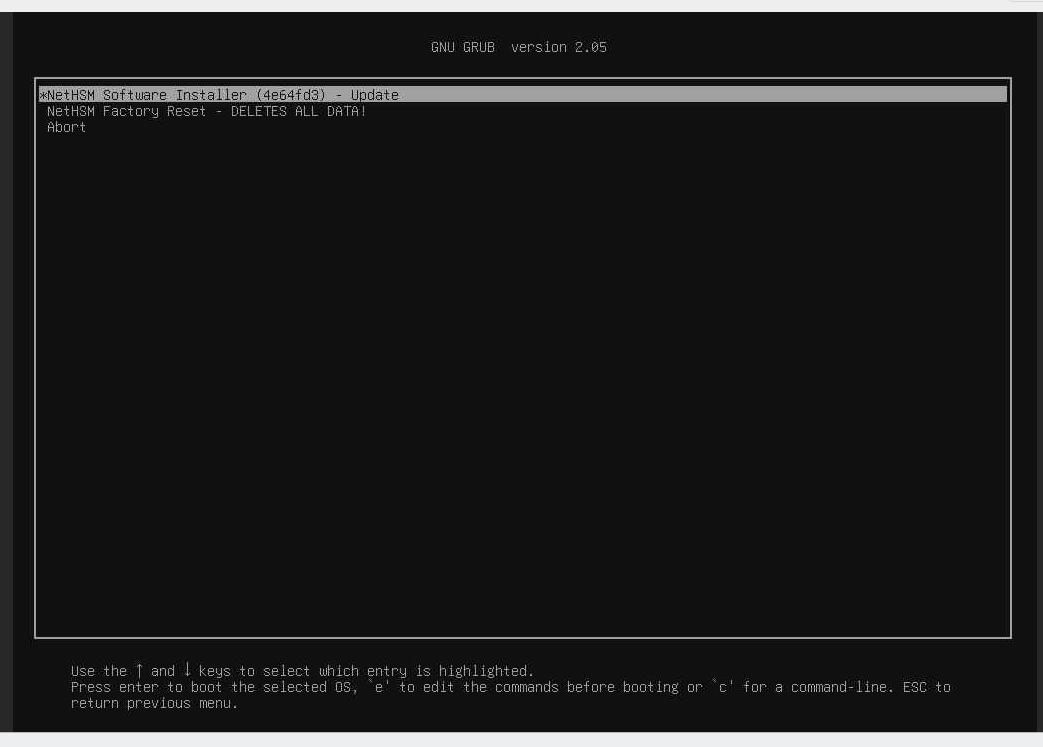
The boot menu will default to perform the software update.
This will take about 2 minutes.
The machine will automatically shutdown after the update.
Alternatively you can select NetHSM automatic boot (USB or primary system) in the first boot menu and then NetHSM Software Installer in the second boot menu.
Warning
Do NOT select NetHSM Factory Reset - DELETES ALL DATA! from the menu.
This will irrecoverably wipe the data on the disk.
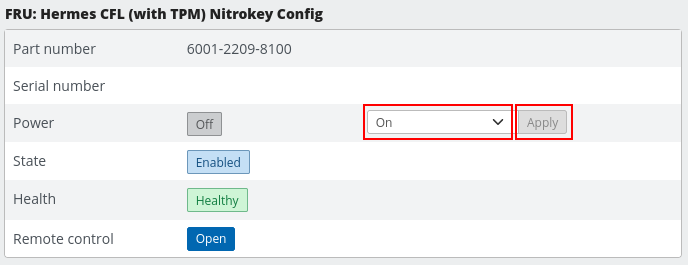
Turn on the NetHSM by pressing the power button on the front.
Download the installer image ending with installer.img.zip from the provided private download page.
Unpack the installer image.
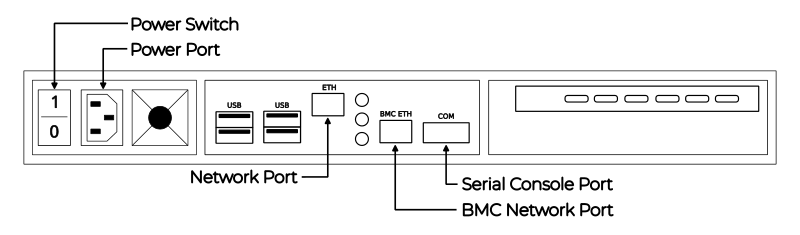
Make sure the system is turned off, but connected to power, and the power button on the back turned on.
Connect the BMC network port with a network cable.
See the image below to identify the BMC network port.
Per default the BMC will wait for an address assignment with DHCP.
If DHCP is not available the link-local address can be determined with Nmap.
The command nmap<network-in-cidr-notation>-p80--open will return a list of hosts with open port 80.
Open the BMC website in a web browser, using the determined IP address from the previous step.
To login, the default credentials are username bmc_admin, and password 8mCU$3r0nE.
Important
In case you encounter an unauthorized login error on the BMC web interface it can be one of the following issues.
Username or password wrong.
During factory reset the BMC generates a new TLS certificate.
Some web browsers fail with connection errors when the certificate changes while the same window stays open.
Close the web browser window and open a new one.
The BMC software sometimes shows the issue that it doesn’t accept an older session cookie which are still in the cache of the web browser.
Clear the web browsers cache and try again.
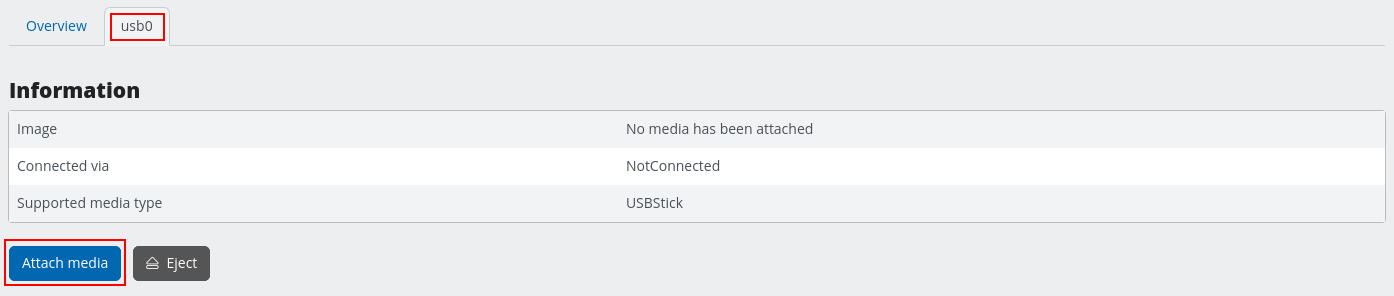
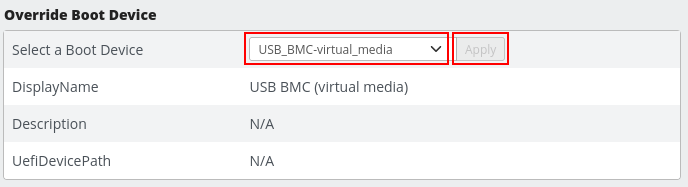
Mount the downloaded installer image by clicking in the menu on the left on FRU: Hermes CFL (with TPM) Nitrokey Config followed by Virtual media in the submenu.
In the middle open the tab usb0, and click the button Attach media.
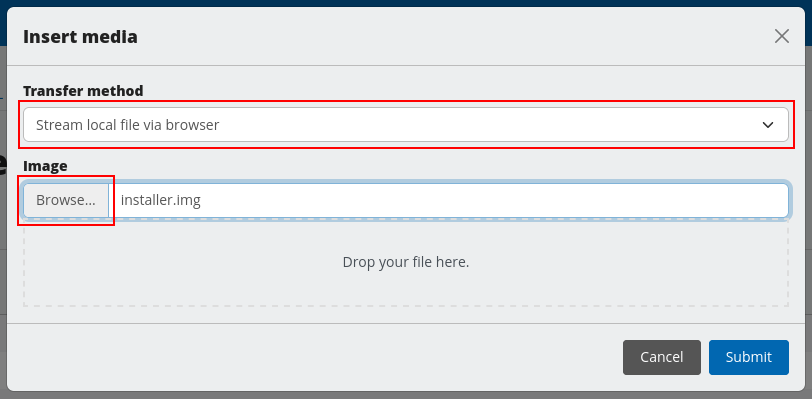
In the opening dialog choose Stream local file via browser as the Transfer method.
Click the button Browse… and choose the downloaded installer image.
Confirm the operation with the Submit button.