Thunderbird
Compatible Nitrokeys |
|||||||
|---|---|---|---|---|---|---|---|
✓ active |
⨯ inactive |
⨯ inactive |
✓ active |
⨯ inactive |
✓ active |
✓ active |
⨯ inactive |
雷鸟78.3及以上版本
At the moment Thunderbird's 78 support for the OpenPGP emails is not easy to set up. See Thunderbird's documentation for details. Here is a comprehensive German guide.
故障排除
错误信息。The configured key ID '4BA0183FCBA844A7' cannot be found on your keyring
Make sure that the public key is imported to the Thunderbird's manager and
密钥ID不包含任何空格,由16个字符组成,范围为0-9 A-F
您已安装GPA或Kleopatra软件。
请使用Kleopatra或`GPA <openpgp-keygen-gpa.html>`_软件来处理智能卡。
雷鸟77及以上版本
安装
按照`的描述安装设备驱动程序 <https://www.nitrokey.com/documentation/installation>`__。
安装`Thunderbird <https://www.thunderbird.net/en-US/>`__和插件`Enigmail <https://www.enigmail.net/index.php/en/>`__。
更改密码
Nitrokey有两个密码。
日常工作所需的用户密码
在改变钥匙或设备的其他设置时,需要有管理密码。此外,Nitrokey可以通过管理密码来解锁(例如,在错误输入3次用户密码后)。
收到硝基钥匙后,你应立即更改用户密码="123456 "和管理员密码="12345678"。
程序
将Nitrokey插入电脑上的USB接口。
启动Thunderbird。
在Thunderbird中,选择如下图所示。"OpenPGP" → "管理智能卡"
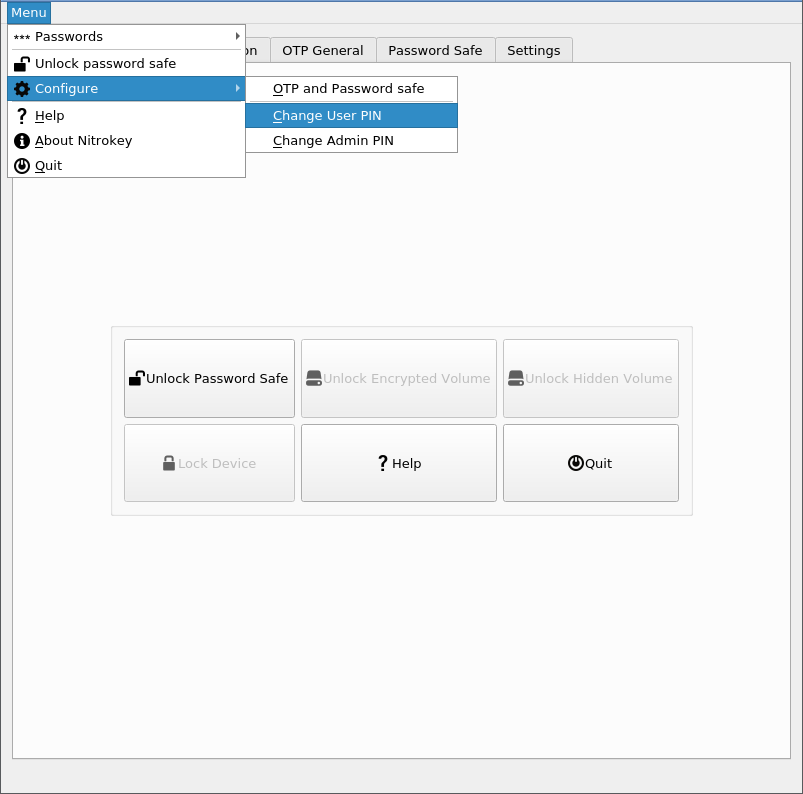
在 "智能卡详细信息 "窗口,选择 "智能卡→更改密码"
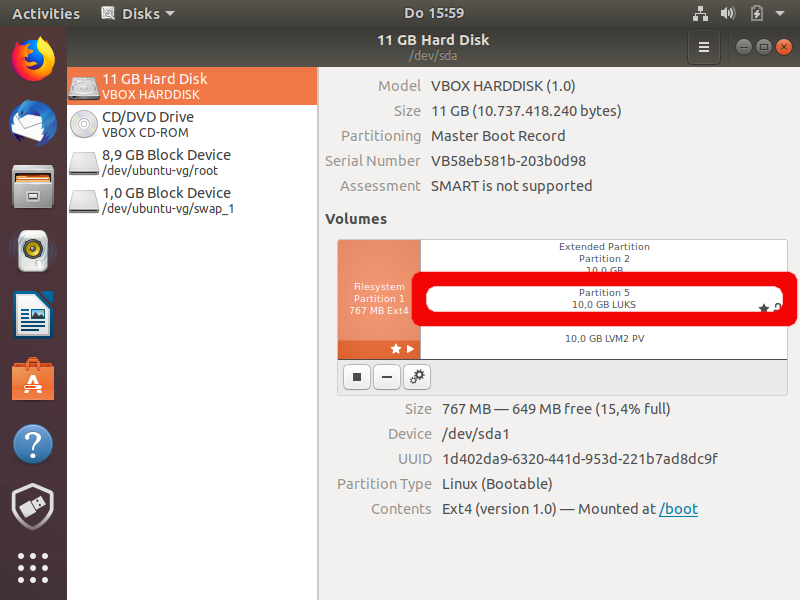
选择 "更改密码"。这是你在日常工作中需要的用户密码。输入当前的PIN码("123456 "用于送货)和两次你的新PIN码。对于这个密码,你可以使用以下字符:a-z A-Z 0-9 / ...;;:- !?() [] {}% +.密码应该至少有6个字符。点击 "确定"。
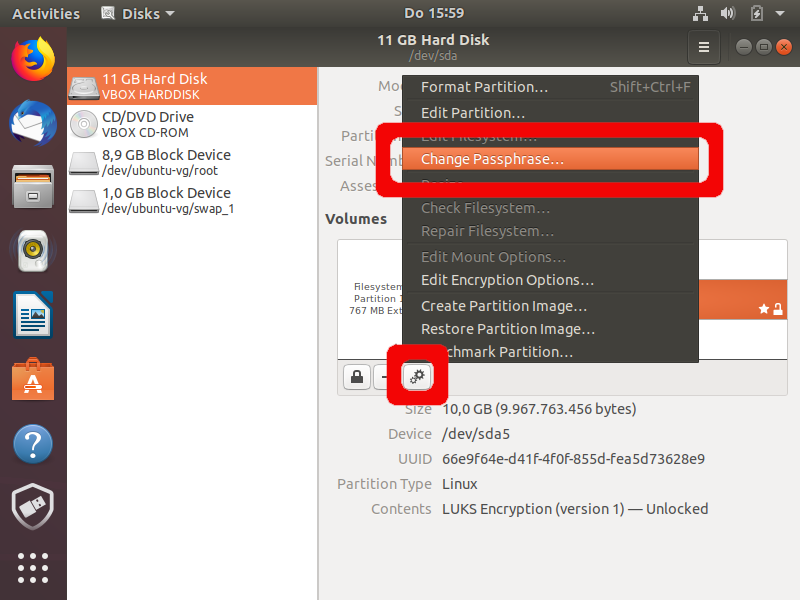
重复管理密码的程序。"智能卡→更改密码"
选择 "更改管理员密码"。这是你的管理密码,你很少需要。输入当前的PIN码("12345678",用于交付)和新的PIN码两次。对于这个PIN,您可以使用以下字符:a-z A-Z 0-9 / ...;;:- !?() [] {}% +.该PIN码应至少有8个字符。点击 "确定"。
你现在已经改变了PIN码,应该继续生成你的个人密钥。
钥匙的产生
To encrypt data and e-mails, a key pair consisting of a public key and a private key, must first be generated. The so-called public key is used to encrypt the data or e-mails. You can distribute this to all those with whom you want to communicate securely (for example, publish it publicly on your site). The so-called private key is used to decrypt the data or messages. This key should NEVER be made known! Usually, you also do not have direct access to it (see below), since this is stored securely on the Nitrokey. Use the Nitrokey to create both keys using the following procedure:
将Nitrokey插入电脑上的USB接口。启动Thunderbird
在Thunderbird中,选择如下图所示的 "OpenPGP"→"管理智能卡"
在 "智能卡详情 "窗口,选择 "智能卡"→"生成密钥"
在下面的窗口中,选择你的电子邮件地址,你想为其生成密钥。确认在 "用户ID "中指定的电子邮件地址是正确的。你还可以指定是否要在你的电脑上存储一个私钥备份副本。
如果你不创建一个备份,在Nitrokey丢失或损坏的情况下,你就没有机会得到你的加密数据!
It is recommended to store this safety device. Select “Save key copy of the key outside the Smart Card”. Then enter your personal password for the backup copy under “Passphrase”. This password should not be less than 8 characters, and should contain both uppercase and lowercase letters and numbers. You can also use a long sentence, but avoid known prose or lyric. Also, no name or known term should be used.
Allowed characters:
a-z,A-Z,0-9,/.,;:-!?( )%+(no umlautsä,ü,ö,Ä,Ü,Öorß)Poor Passwords:
qwerty123,ILoveSusi3,PasswordStrong Passwords:
g(Ak?2Pn7YnorKi.stg2bLqzp%dorA dog with greeen Earz and fife legs(spelling errors increase security)You do not need this password for daily work. It is only necessary for the restoration of the secret key, e.g. if you have lost the Nitrokey. Therefore, keep the password in a safe place.
你还可以指定该密钥是否以及何时自动失效。这意味着,从这时起,就不能再用这个密钥加密电子邮件了,你必须创建一个新的密钥对。
最后,点击 "生成密钥对"。
现在会问你是否应该生成密钥。请确认 "是"。
为了让程序把你的钥匙写到记忆棒上,你必须输入管理密码和用户密码(上面已经改变)。
钥匙的生成可能需要几分钟的时间。不要过早地终止该程序!
当密钥生成完成后,你会收到以下信息。现在已经创建了一个证书,允许你在紧急情况下使你的钥匙失效。该证书会自动与你的私钥一起保存。这应该被打印出来或至少备份到另一个外部媒介上,这样,如果你的钥匙和备份丢失,你就可以撤销钥匙的有效性。点击 "是"
You can now select the directory in which the backup copy is stored. This copy is encrypted with your password entered above. This means that no one can read or use the keys without your password. Do not give your password to anyone. This file with the name of your e-mail address and the suffix
.ascshould be backed up on another medium. After selecting the directory, click “Save”.
在这里你必须再次指定你的用户密码或口令。然后点击 "确定"

重复管理密码的程序。"智能卡→更改密码"
现在你会看到证书已创建并保存的信息。点击 "确定"
钥匙生成现在已经完成。你现在可以退出程序(文件-关闭)。
你的Nitrokey是个性化的,可以随时使用。在安全的电子邮件加密中享受乐趣!。