桌面登录和Linux用户认证
Compatible Nitrokeys |
|||||||
|---|---|---|---|---|---|---|---|
✓ active |
✓ active |
⨯ inactive |
⨯ inactive |
✓ active |
⨯ inactive |
⨯ inactive |
✓ active |
简介
This guide will walk you through the configuration of Linux to use FIDO Universal 2nd Factor, i.e. FIDO U2F with libpam-u2f and compatible Nitrokeys.
You will set up your Nitrokey as a second factor for authentication. This means you will need your usual login method (likely your password) and your Nitrokey to login.
如果你想使用你的硝基作为替代登录方法(密码或硝基),请在完成主指南后参阅`替代身份验证方法<#alternative-authentication-method>`__。
If you want to login to you computer using Nitrokey Pro 2, Nitrokey Storage 2 and Nitrokey Start you can visit the instructions available here.
警告
下面的指南有可能将你的电脑锁定。你应该意识到这些风险,因为建议首先在第二台电脑上使用下面的说明,或者在完整备份之后使用。
在配置了`PAM模块<https://www.man7.org/linux/man-pages/man8/pam.8.html>`__后,你可能失去对数据的访问。
要求
Ubuntu 24.04 with Gnome Display Manager (GDM).
说明
创建一个备份用户并赋予其root权限。
$ sudo adduser <backup_user>
$ sudo usermod -aG sudo <backup_user>
如果你喜欢为单个用户设置U2F,并且被锁定在用户会话之外,你仍然能够用``<backup_user>``登录,并继续进行维护。
安装
libpam-u2f。On Ubuntu 24.04 it is possible to download directly
libpam-u2ffrom the official repos$ sudo apt install libpam-u2f
备注
另外,你可以从`Git <https://github.com/phoeagon/pam-u2f>`__构建``libpam-u2f``。
为了验证该库是否正确安装,请输入以下命令。
$ file /lib/x86_64-linux-gnu/security/pam_u2f.so
输出应该是如下内容。
/lib/x86_64-linux-gnu/security/pam_u2f.so: \ ELF 64-bit LSB shared object, x86-64, version 1 (SYSV),\ dynamically linked, BuildID[sha1]=1d55e1b11a97be2038c6a139579f6c0d91caedb1, stripped
生成U2F配置文件。
To generate the configuration file we will use the
pamu2fcfgutility. First plug your Nitrokey (if you did not already), and enter the following command:$ pamu2fcfg > ~/u2f_keys
Once you run the command above, you will need to touch the device while it flashes. Once done,
pamu2fcfgwill append its output theu2f_keysfile in the format:<username>:KeyHandle,PublicKey,flags
This will look something like the following:
nitrouser:fS6vQ9uWa0VizcczyZ/bvk5kcQJkIJOC/21/e7dXFe/fnONSL705EkeiUpZpL/3seAWL/qW4/mqb0/WtiZoP/NOLTRM4EEAg1ANLsfYgSzRd/AjsW3z8kJwgckbvwDUyB90ByR09XtBhuE41vMsEk6J+9CS0+ZuPSB0KXRG7z2yZpQLldjE/ijsdIdd8Ct2oXSiZ/zTb/t5kRafNJVkp=,Oo4U9XvIhI9r0WNnvoMwG5/pbgwYd4GMCYEinhWcsI2hKUebYj92JOxDsSa3zd2A9OB0ofXgB16FD2naev3YmLch==,es256,+presence
请注意,此输出并非由``pamu2fcfg`` 直接生成,不包含任何敏感信息。它纯粹是为了显示输出的预期格式和长度。
小技巧
The file must be named
u2f_keys建议先用单个用户测试说明。其他用户的配置将在第 7 节中添加。
Setting up a backup Nitrokey
This step is optional, however it is advised to have a second Nitrokey as backup in the case of loss, theft or destruction of your primary Nitrokey.
To set up a backup key, repeat the procedure above, and use
pamu2fcfg -nlike this:$ pamu2fcfg -n >> ~/u2f_keys
This will omit the
<username>field, and the output is appended to the line with your<username>, this will look something like this:<username>:Zx...mw,04...0a:xB...fw,es256,+presence:04...3f,es256,+presence
Securing the config file
为提高安全性,在配置文件生成后,我们将把生成的文件``~/u2f_keys`` 移至``/etc/Nitrokey/``,并使用这些命令更改访问权限:
$ sudo mkdir /etc/Nitrokey
$ sudo mv ~/u2f_keys /etc/Nitrokey/
$ sudo chmod 644 /etc/Nitrokey/u2f_keys
修改可插拔的认证模块
PAM。配置``/etc/pam.d/`` 下的 PAM 模块文件。这是一个测试阶段--第 8 步将在确认有效后执行配置。
In this guide we will modify the
common-authfile as it handles the authentication settings which are common to all services, other options are described in PAM Modules. You can modify the file with the following command:$ sudo editor /etc/pam.d/common-auth
Add the following line at the bottom of the file:
#Nitrokey config
auth    sufficient pam_u2f.so authfile=/etc/Nitrokey/u2f_keys cue [cue_prompt=Please touch the device.] prompt
小技巧
我们使用 sufficient 进行测试,并将在步骤 8 中更改为 required。
由于我们使用中央认证映射,我们需要告诉``pam_u2f``使用``authfile``选项的文件位置。
If you often forget to insert the key,
promptoption makespam_u2fprintInsert your U2F device, then press ENTER.and give you a chance to insert the Nitrokey.If you would like to be prompted to touch the Nitrokey,
cueoption will makepam_u2fprintPlease touch the device.message. You can change the message in[cue_prompt=Please touch the device.].
备注
为什么要放在底部? PAM 从上到下处理模块。将 U2F 配置放在底部可确保首先检查密码验证,从而创建第二因素工作流程(密码 + U2F)。
有关替代身份验证选项(密码或硝基)以及行位置和控制标志如何影响身份验证的详细说明,请参阅`替代身份验证方法<#alternative-authentication-method>`__。
一旦我们修改了``common-auth``,我们可以保存并退出文件。
You can test the configuration by typing
sudo lsin the terminal. After typing in your password you should be prompted with the messagePlease touch the device.and have a similar output on the terminal:nitrouser@nitrouser:~$ sudo ls [sudo] password for nitrouser: Please touch the device.
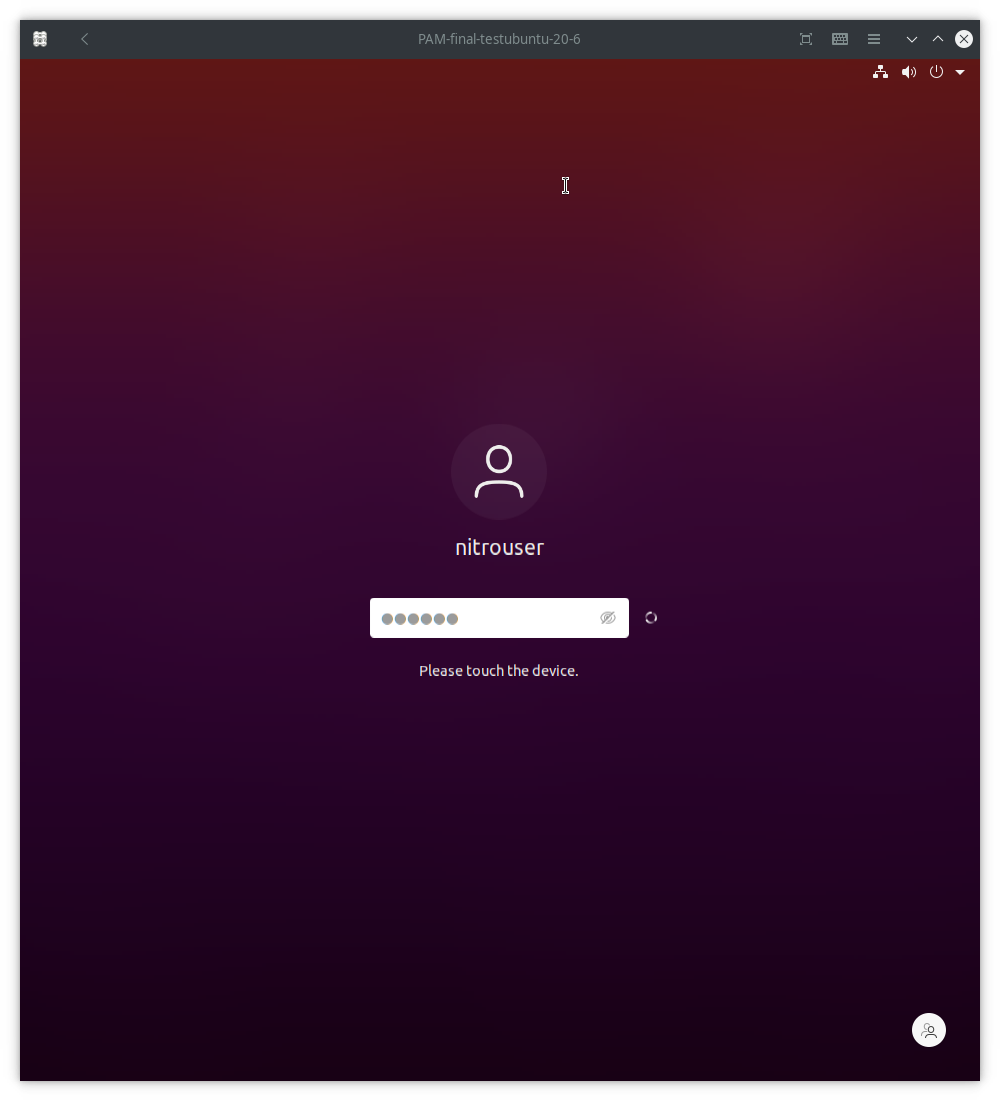
You can also test your configuration by logging out of the user session and logging back in. A similar screen should be displayed once you you unplug/re-plug your Nitrokey and type your password:
Setting up multiple users
确认使用硝基的身份验证确实有效后,就可以为系统中的其他用户设置 U2F 配置文件了。
警告
如果您没有在 U2F 配置文件中设置所有用户,并在步骤 8 中继续执行硝基身份验证,您将无法使用任何未配置的用户登录!
To configure u2f for multiple users,
pamu2fcfgtakes the-u <username>option, the output can be appended to theu2f_keysfile like this:$ sudo pamu2fcfg -u <username> >> /etc/Nitrokey/u2f_keys
要为该用户添加备份硝基钥匙,请插入备份硝基钥匙,并执行与主用户相同的操作:
$ sudo pamu2fcfg -n >> /etc/Nitrokey/u2f_keys
然后对系统中的所有用户重复此过程。
Enforcing Nitrokey second factor authentication
您可能已经注意到,使用硝基钥匙进行身份验证尚未强制执行。在确认使用硝基钥匙进行身份验证确实有效后,我们可以通过将``sufficient`` 标志更改为``required`` 来强制执行。
警告
在继续此步骤之前,请确保您已经准备好:
经测试,使用硝基钥匙进行身份验证确实有效,否则可能会失去对电脑的访问权限。
设置备份硝基钥匙。否则,如果您丢失或弄坏了您的硝基钥匙,您将无法访问您的电脑!
小心行事!
为此,您需要编辑``PAM`` 配置文件:
$ sudo editor /etc/pam.d/common-auth
在文件底部添加的一行中,将``sufficient`` 改为``required``。应该是这样的
#Nitrokey config
auth    required pam_u2f.so authfile=/etc/Nitrokey/u2f_keys cue [cue_prompt=Please touch the device.] prompt
After completing the setup, it is recommended to reboot your computer and unplug/re-plug the Nitrokey.
Alternative Authentication Method
如果您喜欢用您的硝基钥匙来替代密码(密码或硝基钥匙),您可以用此来代替配置:
Configuration Steps:
将 PAM 配置行移至**顶部** 的``/etc/pam.d/common-auth``(在其他 auth 模块之前)。
保留``sufficient`` 控制标志
这样就可以只使用其中一个因素进行身份验证。请注意,这比第二因素身份验证的安全性要低。
了解身份验证模式
线路位置和控制标志的组合决定了您的验证模式:
Position |
Control Flag |
Authentication Mode |
Use Case |
|---|---|---|---|
底部(在 pam_unix 之后) |
|
Second factor (testing) |
安全测试阶段 |
底部(在 pam_unix 之后) |
|
第二个因素(强制执行) |
Production security (main guide) |
顶部(pam_unix 之前) |
|
Alternative factor |
Convenience (password OR key) |
PAM 如何工作
PAM 按从上到下的顺序处理模块。控制标志决定了成功或失败对整个身份验证的影响:
sufficient`:成功完成身份验证;如果其他模块成功,则忽略失败
required`:成功是强制性的;失败会导致整体身份验证失败
这对您意味着什么?
替代认证(顶部+足够):
您可以使用密码**或** 单独登录您的硝基钥匙
If authentication with the Nitrokey succeeds, no password is required
如果硝基验证失败或跳过,密码仍然有效
这比第二因素身份验证更方便,但安全性较低
Security implications:
拥有您密码的攻击者可以在没有您的硝基钥匙的情况下登录
攻击者只要能实际接触到您的硝基,就能在没有密码的情况下登录
只有在方便性比最大安全性更重要的情况下才可使用
有关控制标志及其含义的详细解释,请参阅`控制标志<#control-flags>`__。
PAM模块
有几个PAM模块文件,可以根据你的需要进行修改。
By modifying
/etc/pam.d/common-authfile, you will be able to use you Nitrokey for 2nd factor authentication for graphic login andsudo.If you wish to use FIDO U2F authentication solely for Gnome's graphic login, you might prefer to modify the
/etc/pam.d/gdm-password另外,如果你想在使用``/etc/pam.d/sudo``文件时使用FIDO U2F,你可以直接修改``sudo``命令。
控制标志
控制标志决定 PAM 模块在身份验证成功或失败时的行为。在步骤 6 中,我们使用``sufficient`` 标志进行测试,然后改为``required`` 执行。
可用的控制标志有
required: The module result must be successful for authentication to continue. This is the most critical flag and can lock you out of your computer if you do not have access to the Nitrokey.必要条件":与
required类似,但在特定模块返回失败的情况下,控制权会直接返回应用程序或上级 PAM 堆栈。如果你没有访问 Nitrokey 的权限,该标记也会将你锁定在计算机之外。sufficient: The module result is ignored if it fails. In case of success, control is directly returned to the application, or to the superior PAM stack. This means no other PAM modules will be executed. Thesufficientflag is considered safe for testing purposes.optional: The success or failure of this module is only important if it is the only module in the stack associated with this service+type. Theoptionalflag is considered safe to use for testing purposes.
警告
If
requiredorrequisiteis set, the failure of U2F authentication will cause a failure of the overall authentication. Failure will occur when the configured Nitrokey is not plugged, lost or destroyed.You will lose access to your computer if you misconfigured the PAM module and used the
requiredorrequisiteflags.如果你设置了中央认证映射,你也将失去使用``sudo``的能力。*并*使用``required``或``requisite``标志。
如果使用了``required`` 或``requisite`` 标记,则可能无法使用 Gnome 显示管理器登录。更多信息,请参阅故障排除。
故障排除
使用 GDM 登录用户账户的问题
在某些情况下,例如安装了 opencs-pkcs11 时,Gnome 显示管理器 (GDM) 默认会在插入任何智能卡(如您的硝基)后立即强制执行智能卡登录,即使从未配置过智能卡也是如此。这可能会妨碍你使用 u2f 登录用户账户。如果设置了``sufficient`` 控制标志,请拔下所有智能卡并使用密码登录。要关闭智能卡强制执行功能,请运行以下命令:
$ sudo -u gdm env -u XDG_RUNTIME_DIR -u DISPLAY DCONF_PROFILE=gdm dbus-run-session gsettings set org.gnome.login-screen enable-smartcard-authentication false