Im Folgenden wird der Ablauf der Softwareaktualisierung für die NetHSM-Systemsoftware beschrieben. Diese Installationsmethode sollte nur verwendet werden, wenn die unter Software Update beschriebene Aktualisierung nicht verfügbar ist. Befolgen Sie die Anweisungen genau, um ein versehentliches Löschen von Daten zu vermeiden. Es wird empfohlen, vor der Durchführung der Aktualisierung eine Sicherungskopie vom NetHSM zu erstellen.
The system software update can be performed as follows.
Download the installer image ending with installer.img.zip from the provided private download page.
Entpacken Sie das Installer-Image.
Write the installer image to a USB flash drive.
For this you could use the graphical tool balenaEtcher.
On Linux you could also use the command line tool dd.
Ignore any warning that a partition table is missing.
Schließen Sie den USB-Stick an einen beliebigen USB-Anschluss an der Vorderseite oder an einen der beiden USB-2.0-Anschlüsse in der Mitte der Rückseite des Geräts an. Die USB-2.0-Anschlüsse sind in der Mitte mit einem schwarzen Einsatz versehen.
Bemerkung
Some USB drives are incompatible with the NetHSM.
This results in the NetHSM not recognizing them as a boot media.
In case the NetHSM does not boot from the connected USB drive, try a different USB drive model.
Schalten Sie das NetHSM aus und trennen Sie es von der Stromversorgung.
Connect a monitor and optionally a keyboard to the NetHSM.
Bemerkung
Stellen Sie sicher, dass nur die Tastatur und der USB-Stick an die USB-Anschlüsse angeschlossen sind.
Connect the NetHSM to power and wait for 10 seconds.
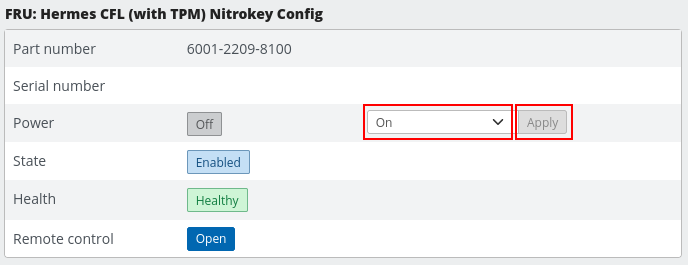
Turn on the NetHSM by pressing the power button on the front.
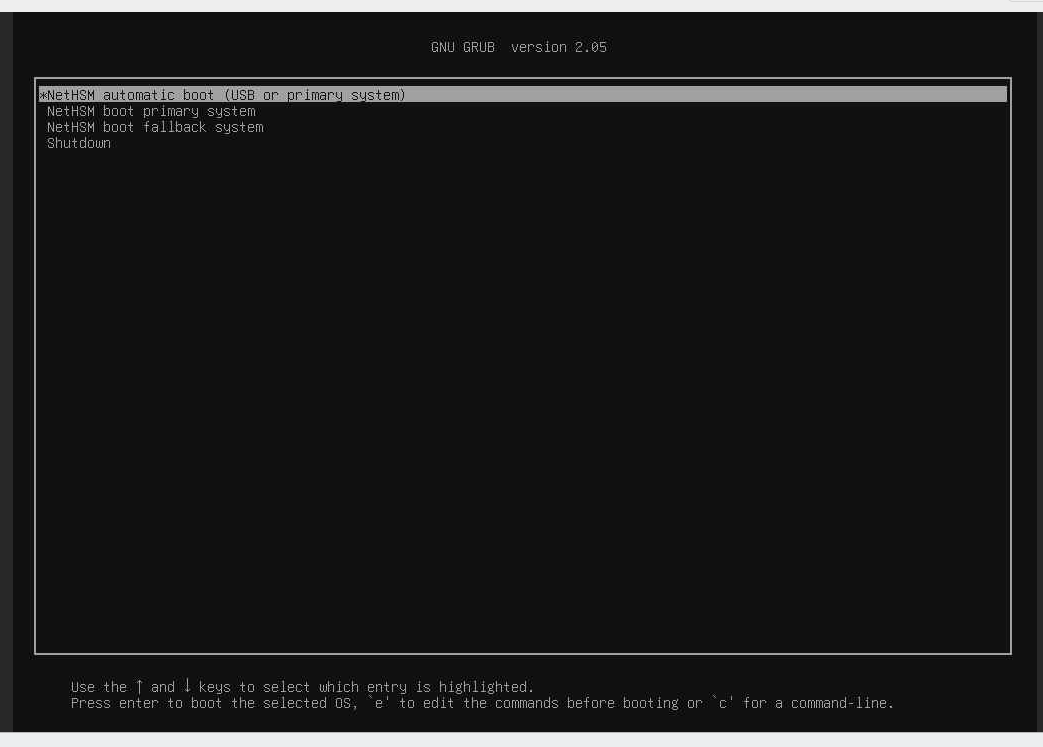
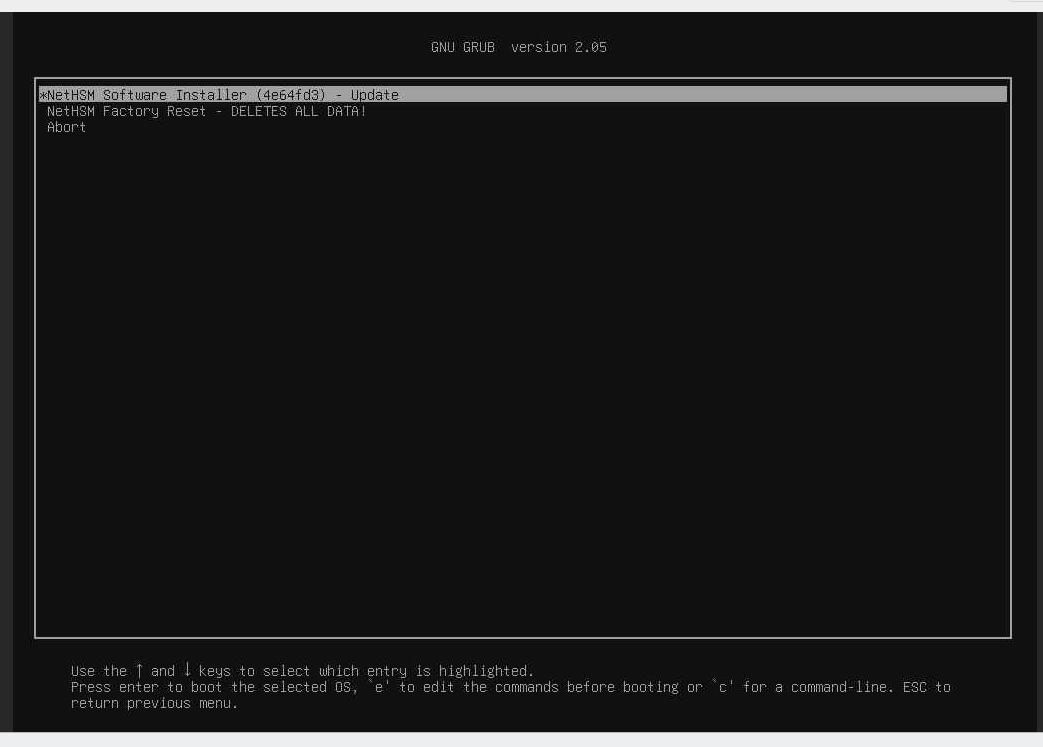
Nach etwa 30 Sekunden zeigt das NetHSM ein Startmenü auf dem Monitor an. Im Startmenü ist standardmäßig die Durchführung des Software-Updates ausgewählt. Dies dauert etwa 2 Minuten. Nach dem Update schaltet sich das Gerät automatisch aus.
Alternatively you can select NetHSM automatic boot (USB or primary system) in the first boot menu and then NetHSM Software Installer in the second boot menu.
Warnung
Do NOT select NetHSM Factory Reset - DELETES ALL DATA! from the menu.
This will irrecoverably wipe the data on the disk.
Turn on the NetHSM by pressing the power button on the front.
Download the installer image ending with installer.img.zip from the provided private download page.
Entpacken Sie das Installer-Image.
Vergewissern Sie sich, dass das System ausgeschaltet, aber an das Stromnetz angeschlossen ist, und dass der Netzschalter auf der Rückseite eingeschaltet ist.
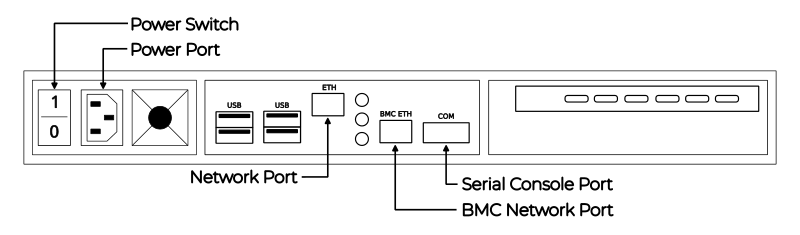
Verbinden Sie den BMC-Netzwerkanschluss mit einem Netzwerkkabel.
In der folgenden Abbildung ist der BMC-Netzwerkanschluss dargestellt.
Standardmäßig wartet der BMC auf eine Adresszuweisung per DHCP. Wenn DHCP nicht verfügbar ist, kann die link-lokale Adresse mit Nmap ermittelt werden. Der Befehl nmap<network-in-cidr-notation>-p80--open gibt eine Liste von Hosts mit offenem Port 80 zurück.
Öffnen Sie die BMC-Website in einem Webbrowser und verwenden Sie dabei die im vorherigen Schritt ermittelte IP-Adresse. Die Standard-Zugangsdaten für die Anmeldung sind der Benutzername bmc_admin und das Passwort 8mCU$3r0nE.
Wichtig
In case you encounter an unauthorized login error on the BMC web interface it can be one of the following issues.
Benutzername oder Passwort falsch.
Beim Zurücksetzen auf die Werkseinstellungen generiert das BMC ein neues TLS-Zertifikat. Einige Webbrowser schlagen mit Verbindungsfehlern fehl, wenn sich das Zertifikat ändert, während das gleiche Fenster geöffnet bleibt. Schließen Sie das Webbrowser-Fenster und öffnen Sie ein neues.
Die BMC-Software zeigt manchmal das Problem, dass sie ältere Sitzungs-Cookies, die sich noch im Cache des Webbrowsers befinden, nicht akzeptiert. Löschen Sie den Cache des Webbrowsers und versuchen Sie es erneut.
Mount the downloaded installer image by clicking in the menu on the left on FRU: Hermes CFL (with TPM) Nitrokey Config followed by Virtual media in the submenu.
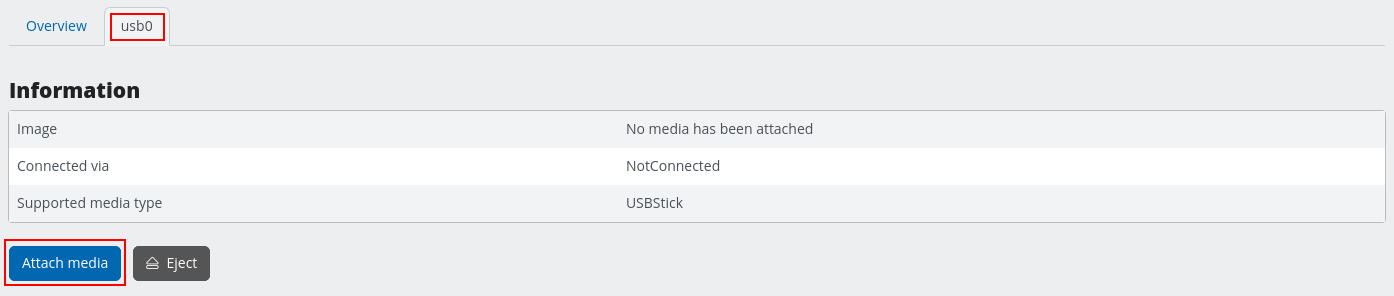
In the middle open the tab usb0, and click the button Attach media.
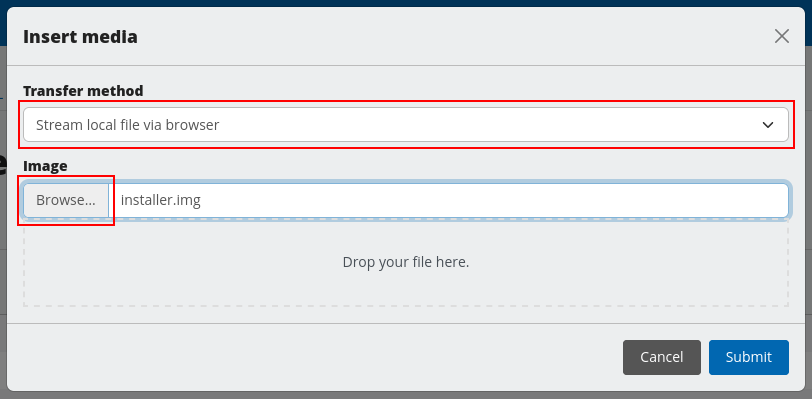
In the opening dialog choose Stream local file via browser as the Transfer method.
Click the button Browse… and choose the downloaded installer image.
Confirm the operation with the Submit button.
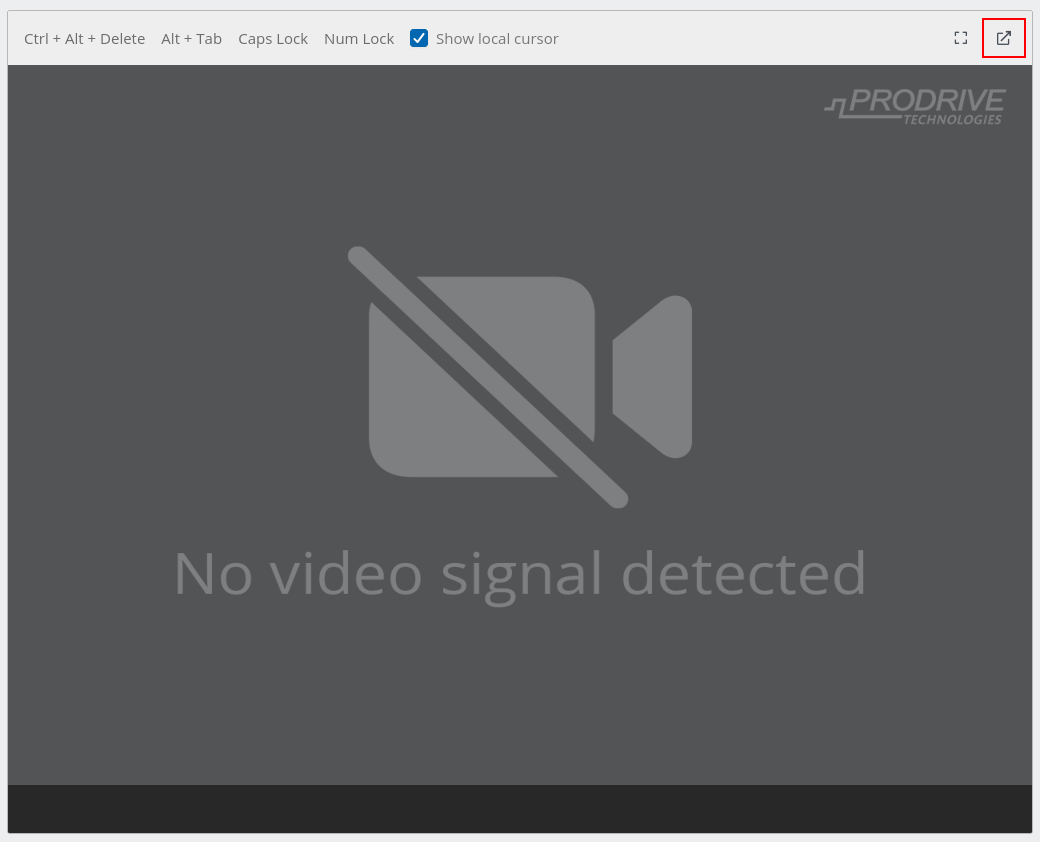
Dieses Fenster zeigt Ihnen die grafische Ausgabe des NetHSM-Installationsprogramms. Lassen Sie dieses zweite Fenster zusammen mit dem Hauptfenster des BMC geöffnet.
Change to the view Overview from the top of the menu on the left.
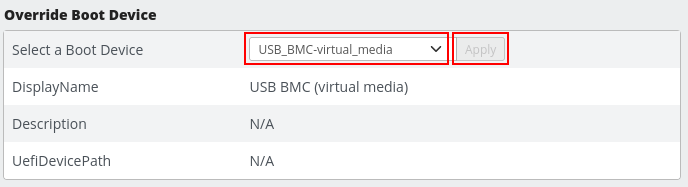
In the box Override Boot Device, select USB_BMC-virtual_media from the drop-down next to Select a Boot Device.