在独立的Windows电脑上用EIDAuthenticate登录
Compatible Nitrokeys |
|||||||
|---|---|---|---|---|---|---|---|
✓ active |
⨯ inactive |
⨯ inactive |
✓ active |
⨯ inactive |
✓ active |
⨯ inactive |
⨯ inactive |
下载并安装最新版本的`OpenSC <https://github.com/OpenSC/OpenSC/wiki>`__。如果使用Nitrokey Storage 2或Nitrokey Pro 2,请安装`OpenPGP-CSP <https://github.com/vletoux/OpenPGP-CSP/releases/tag/1.3>`__驱动**代替。
下载并安装`EIDAuthenticate <https://www.mysmartlogon.com/eidauthenticate/>`__。
备注
免费的社区版已被禁用。你可以测试企业版。
Start
EIDConfigurationWizard.exe选择 "关联一个新的证书"
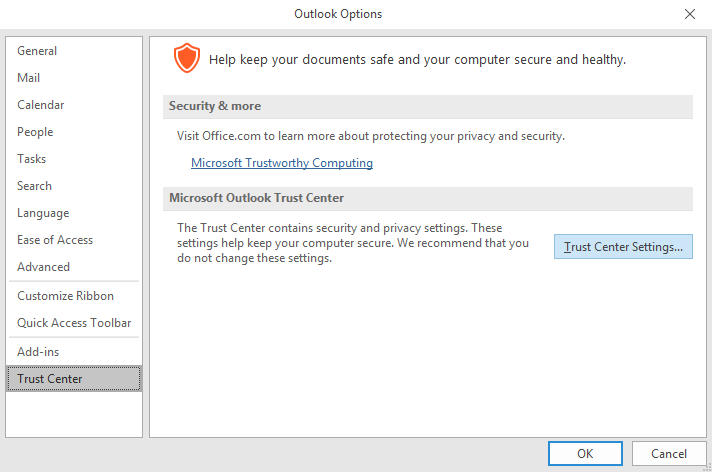
Select or generate a Certificate Authority which should issue the user's certificate on the Nitrokey.
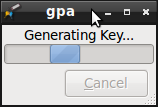
Enter the user PIN which you defined previously in step 4. Wait a moment until a new keypair and certificate are generated. In case your Nitrokey is not detected you may want to execute
certutil -scinfofor troubleshooting.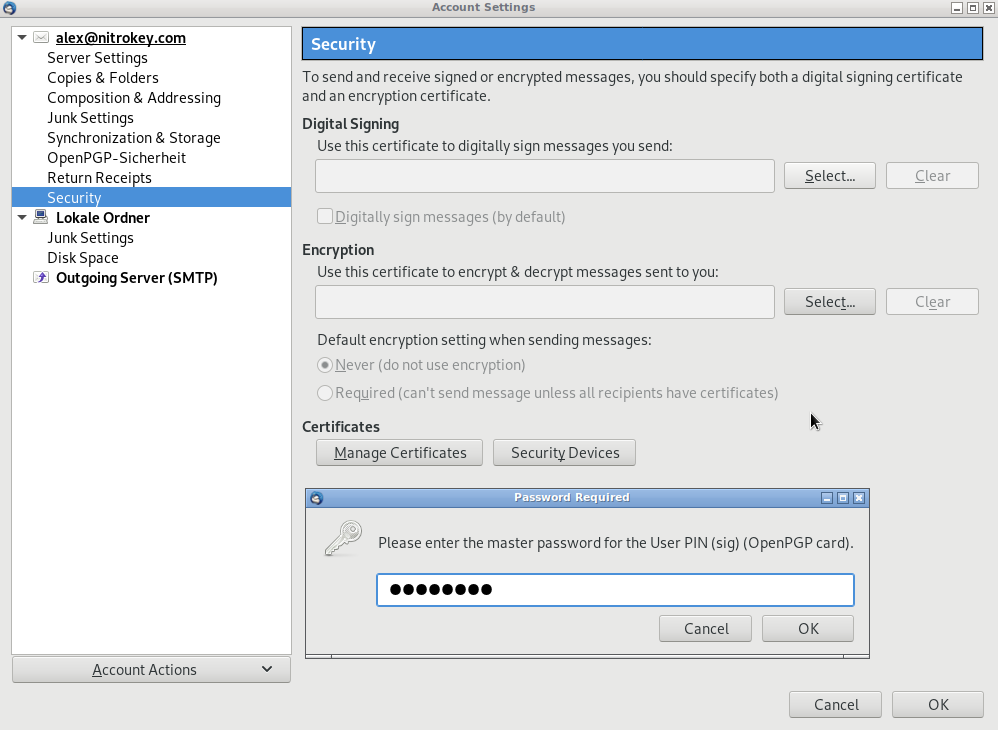
选择新生成的证书并按继续。
所有检查都应该成功。按继续。
输入你的用户账户的密码。
输入你之前在步骤4中定义的用户密码。
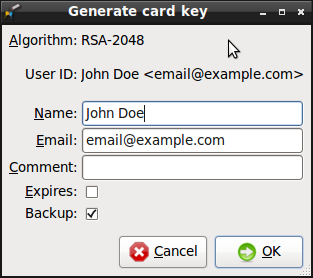
最后的屏幕可能看起来像这样。
你可以进行进一步的配置,如激活强制智能卡策略或在移除Nitrokey时自动锁定电脑(通过使用EIDConfigurationWizardElevated.exe)。
从现在起,在登录Windows电脑时,你需要连接Nitrokey并输入密码。