固件更新
请参考本指南,为已运行Heads系统的NitroPad更新硝基 Heads固件。当已执行OEM出厂重置,但TPM计数器仍需重置时,本指南同样适用。
准备工作
连接原装电源适配器,并将电池电量充至70%以上。在刷机及首次重启过程中,请确保适配器和电池始终保持连接状态。
重要
在 NitroPad NV41、V54 和 V56 上,请使用**中的直流圆柱形插头电源适配器** 进行更新,以同步嵌入式控制器(EC)固件。请勿仅依赖 USB-C 充电:EC 更新可能会在适配器检测之前重置 USB 电源传输(PD)控制器,导致更新失败。
请阅读`Nitrokey Heads 版本说明<https://github.com/Nitrokey/heads/releases/latest>`__,了解升级要求及特定型号的问题。请下载与您具体型号对应的 ZIP 压缩包:
NitroPad T430:
firmware-nitropad-t430-[version].zipNitroPad X230:
firmware-nitropad-x230-[version].zipNitroPad NV41:
firmware-nitropad-nv41-[version].zipNitroPad NS50:
firmware-nitropad-ns50-[version].zipNitroPad V54:
firmware-nitropad-v54-[version].zipNitroPad V56:
firmware-nitropad-v56-[version].zip
请按照以下说明验证该压缩包,然后将其复制到U盘中。请保持ZIP压缩包的完整性;请勿解压该压缩包,也不要将其他文件重命名为ZIP格式。 在“Heads”更新菜单中选择此压缩包。
请备份重要数据。如果启用了磁盘加密,请在更新前确保已获取磁盘恢复密码;如果需要重新配置基于 TPM 的磁盘解锁功能,可能需要使用该密码。
备注
ZIP 更新需要已安装支持该格式的 Heads 版本。如果压缩包无法被接受,或者您是从非常旧的固件版本进行升级,请查阅发行说明并联系`Nitrokey 支持<https://www.nitrokey.com/contact>`__,而不是盲目猜测升级路径。如果固件是手动安装或修改的,请在继续操作前确认 BIOS 和 EC 版本是否兼容。 上游版本号不一定与硝基的发布版本号一致。
固件签名检查
从与固件相同的硝基版本中下载**、** ` 、sha256sum` 、` 以及sha256sum.sig` 。将这些文件和ZIP压缩包放在用于下载它们的计算机上的同一个目录中。
导入硝基发行说明中指定的签名密钥。由 Markus Meissner 签名的发行版使用的是`密钥服务器条目<https://keyserver.ubuntu.com/pks/lookup?search=coder%40safemailbox.de&fingerprint=on&op=index>`__ 中提供的密钥。请将该密钥的指纹与发行版的签名信息进行核对。
在此目录下,验证校验和清单的签名:
gpg --verify sha256sum.sig sha256sum
签名必须有效,且必须属于预期的签名密钥。如果验证失败,则停止。
根据经过验证的清单,对下载的压缩包进行验证:
sha256sum --check --ignore-missing sha256sum
请确认输出中包含**以及您特定型号的 ZIP 压缩包** ,且其校验和为``OK``。仅凭有效的清单签名无法验证下载的 ZIP 文件。如果校验和验证失败或缺失,请勿刷写该文件。
Boot Time After Update
首次重启可能比平时耗时更长。在此重启过程中,EC固件可能会进行更新,且在“Heads”出现之前,系统会重新校准其内存。屏幕可能会完全保持黑色约一分钟或更长时间。 安装的内存越多,延迟可能越大;配备 96 GB 内存的系统可能需要**超过两分钟** 。这些时间仅为示例,并非最大等待时间。一旦内存训练结果被缓存,后续启动速度应会加快。
警告
请勿因屏幕变黑而中断刷写过程或首次重启。 在更新可能仍在进行时,请勿长按电源键、拔下适配器、断开任一电池连接,或执行重置操作。中断固件写入(包括重启期间的 EC 更新)可能会导致 NitroPad 无法启动,并需要通过外部硬件进行恢复。
闪存更新成功并不意味着随后的EC更新已经完成。请保持电源连接,并耐心等待“Heads”出现。如果等待较长时间后仍无进展,且您不确定更新是否仍在进行,请在强制关机前联系硝基技术支持。
程序
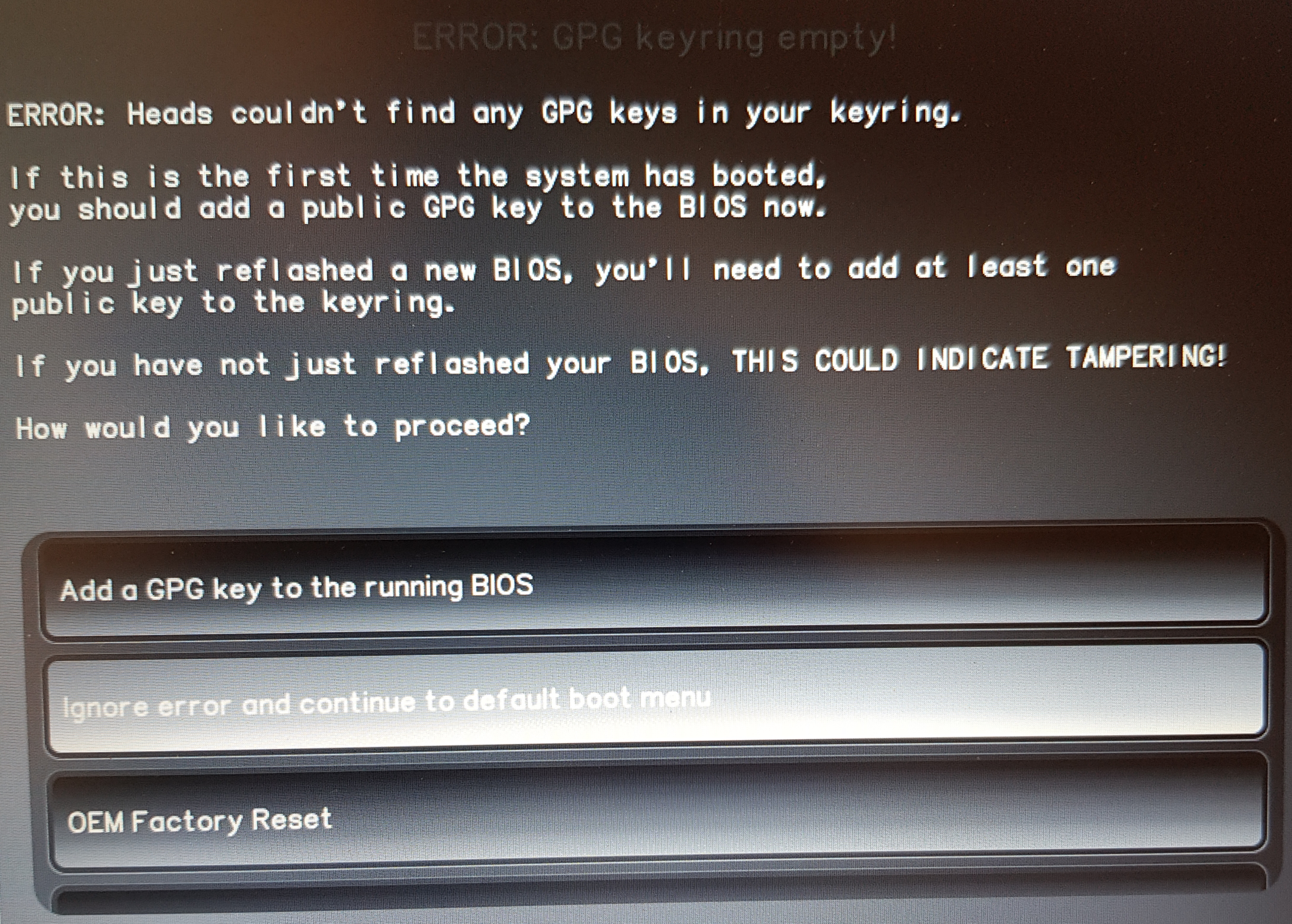
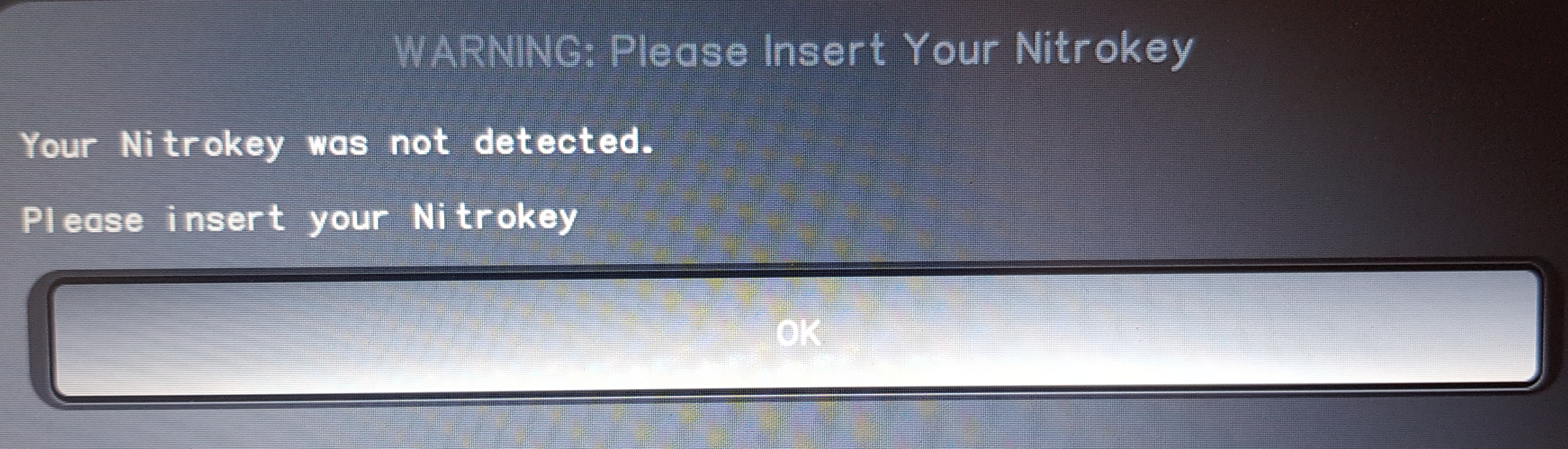
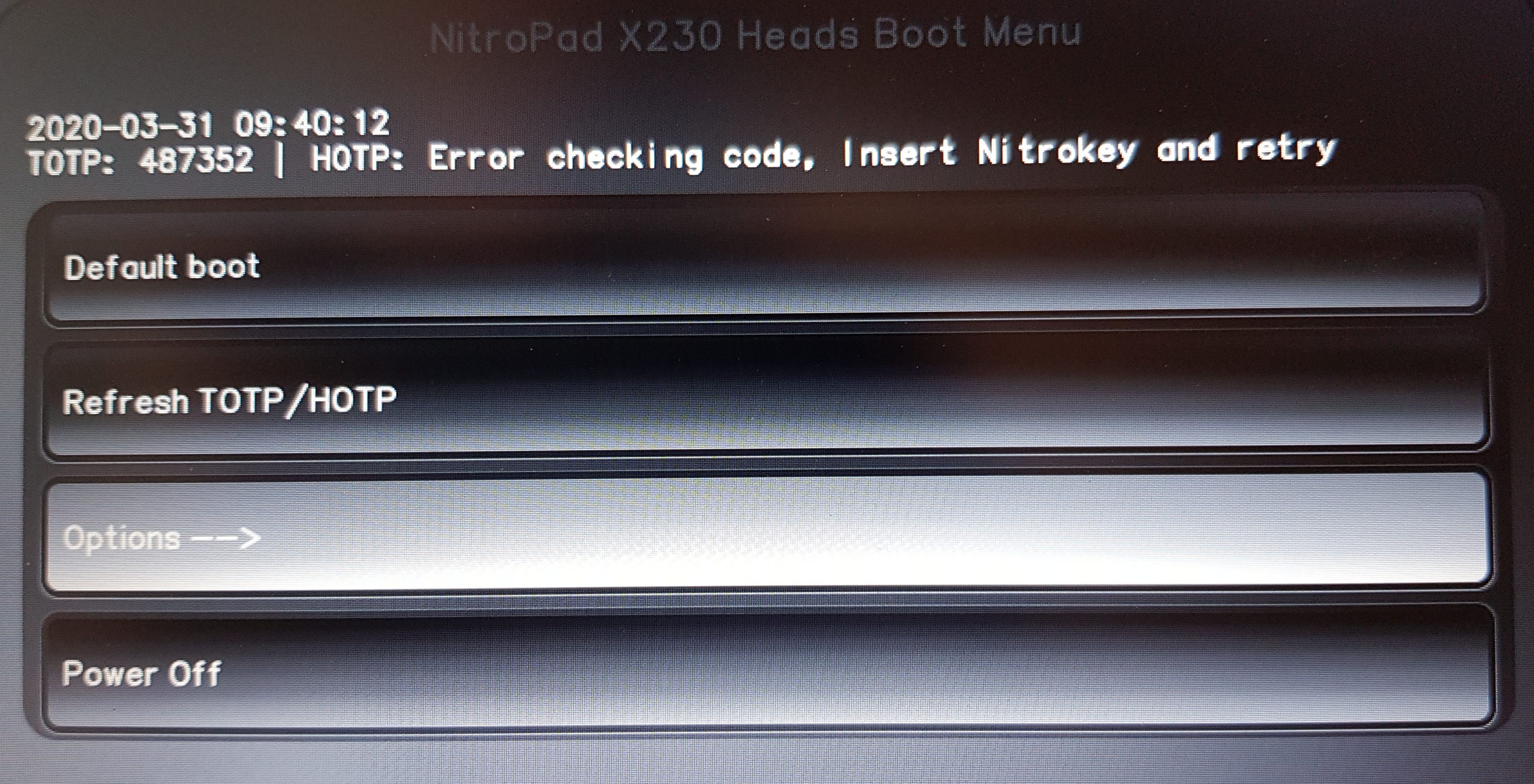
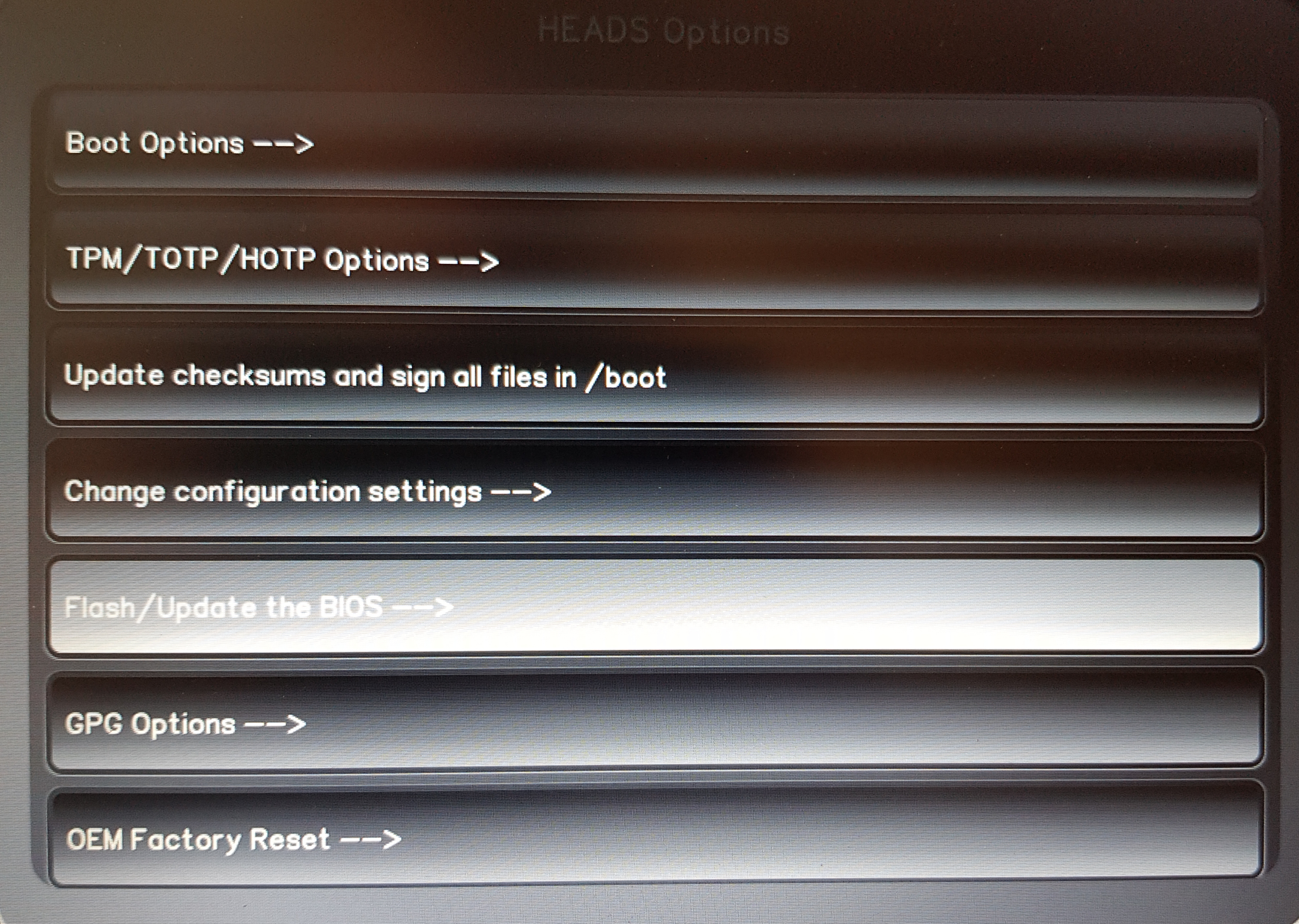
下面的前两个屏幕是可选的。如果它们不存在,请从第 3 步开始。这些屏幕截图展示了菜单流程;在新版本中,文件名和屏幕细节可能会有所不同。请按照上方的 ZIP 文件说明操作。
If the first illustrated error screen appears, select "Ignore error and continue to default boot menu".
If the second illustrated error screen appears, select "Ignore error and continue to default boot menu".
Open "Options".
Choose "Flash/Update the BIOS".
Confirm the first option.
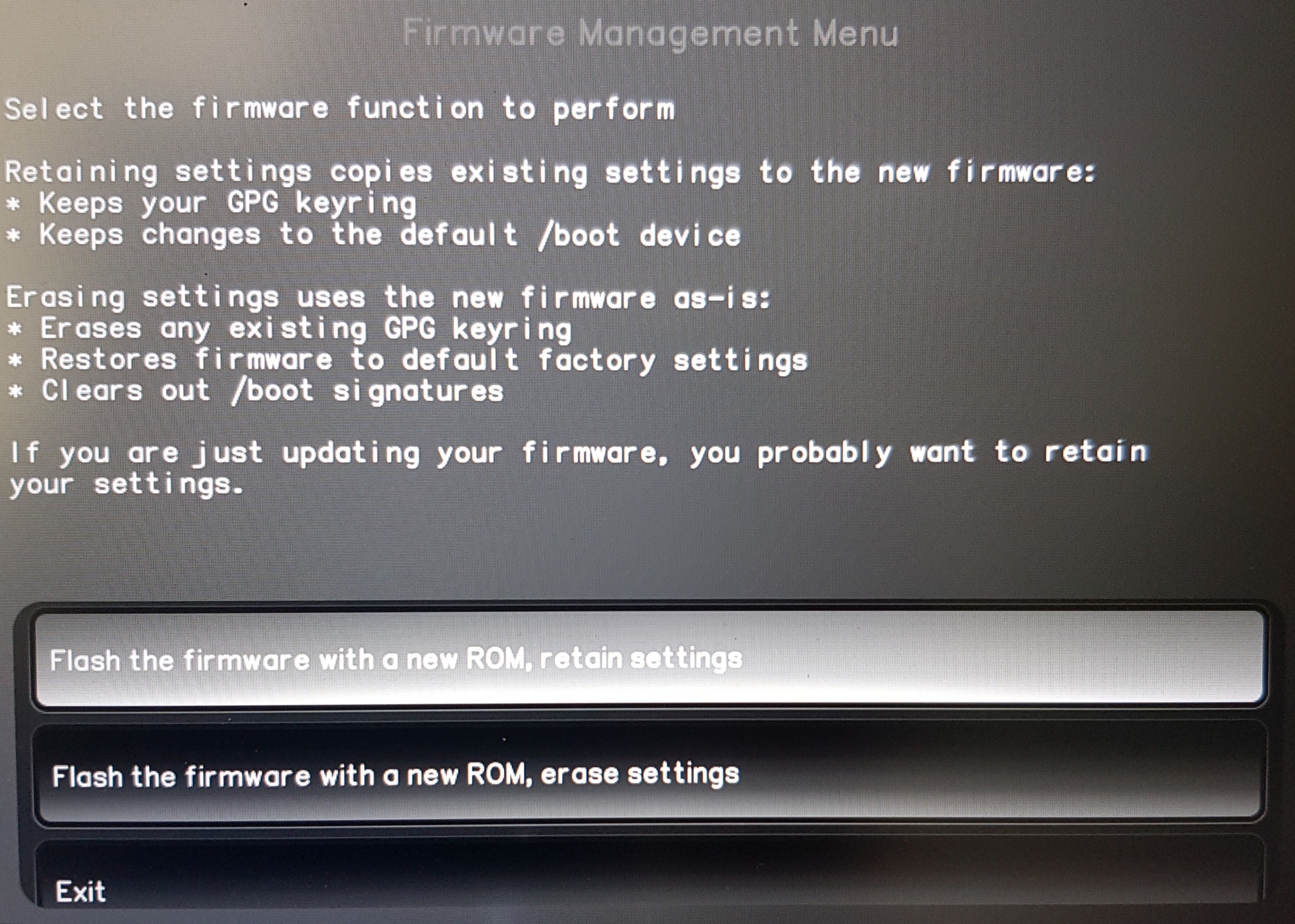
Press Enter to continue.
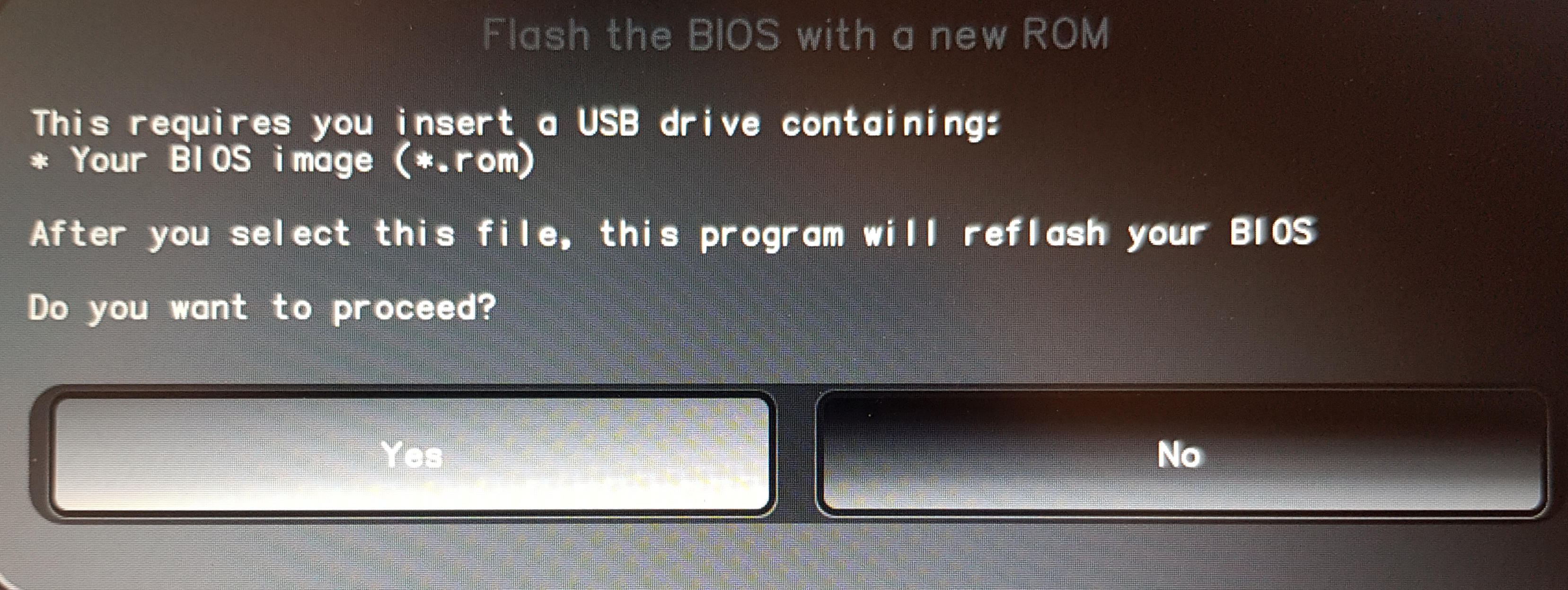
请为您的 NitroPad 模型选择经过验证且完整的``.zip`` 存档文件。
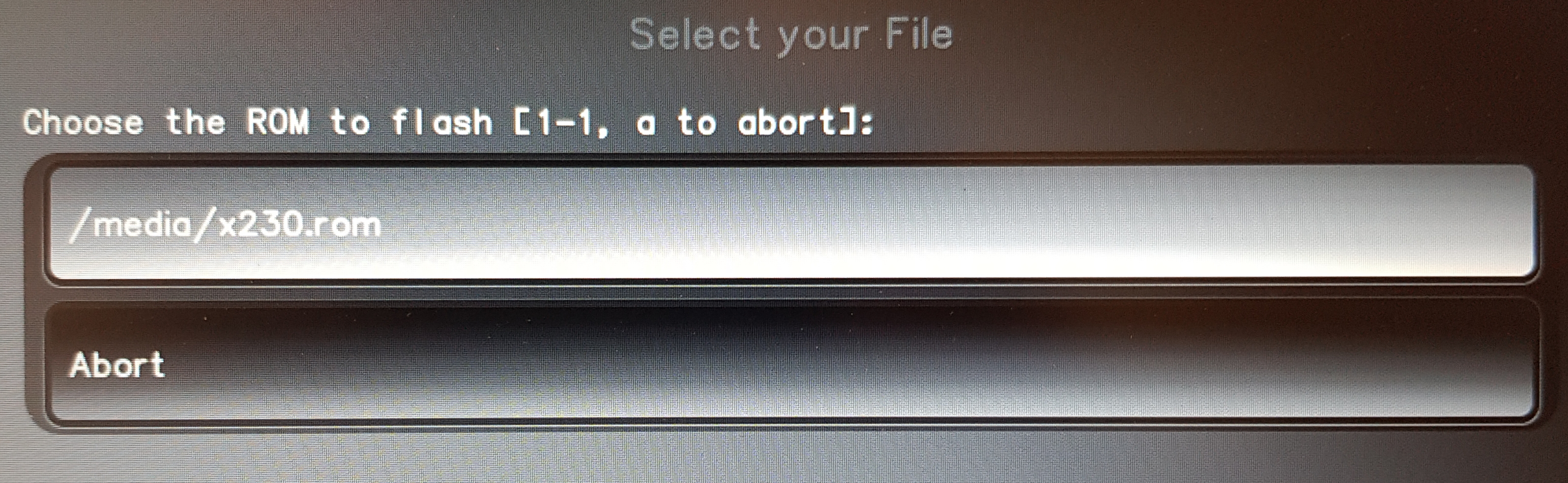
按 Enter 键确认,并等待刷写完成。如果出现错误提示,请记录其确切内容,并联系硝基技术支持。
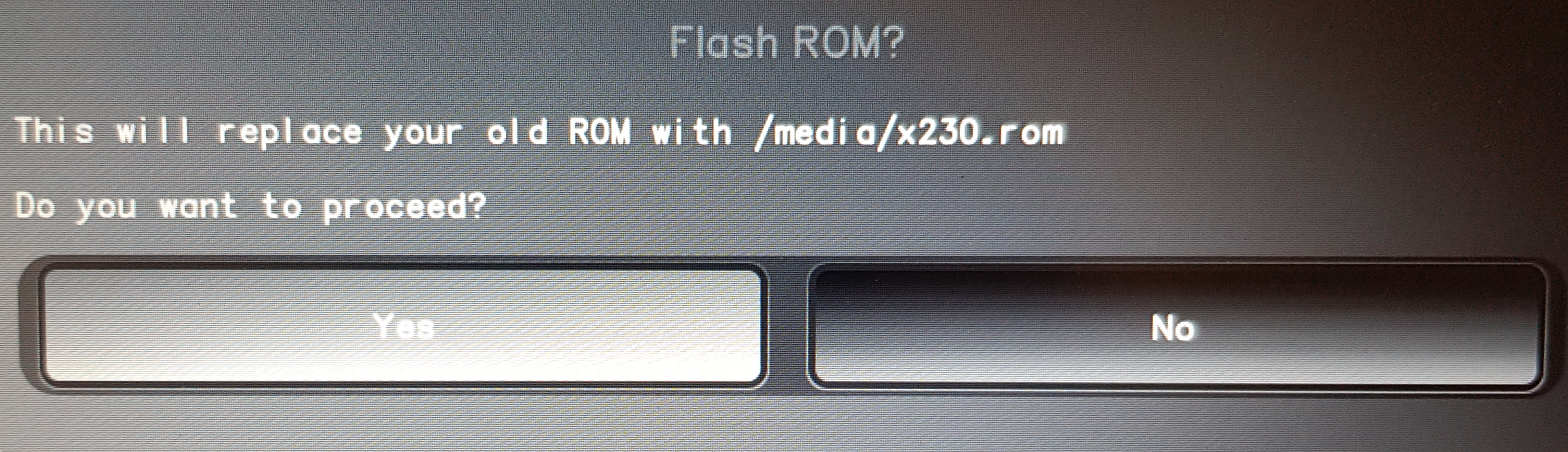
出现提示时,按 Enter 键重新启动。请保持电源适配器和电池连接,即使屏幕保持黑色,也请等待 Heads 重新出现。 请按照`中的说明操作。更新后的启动时间<firmware-update.html#boot-time-after-update>`__;请勿强制关机。
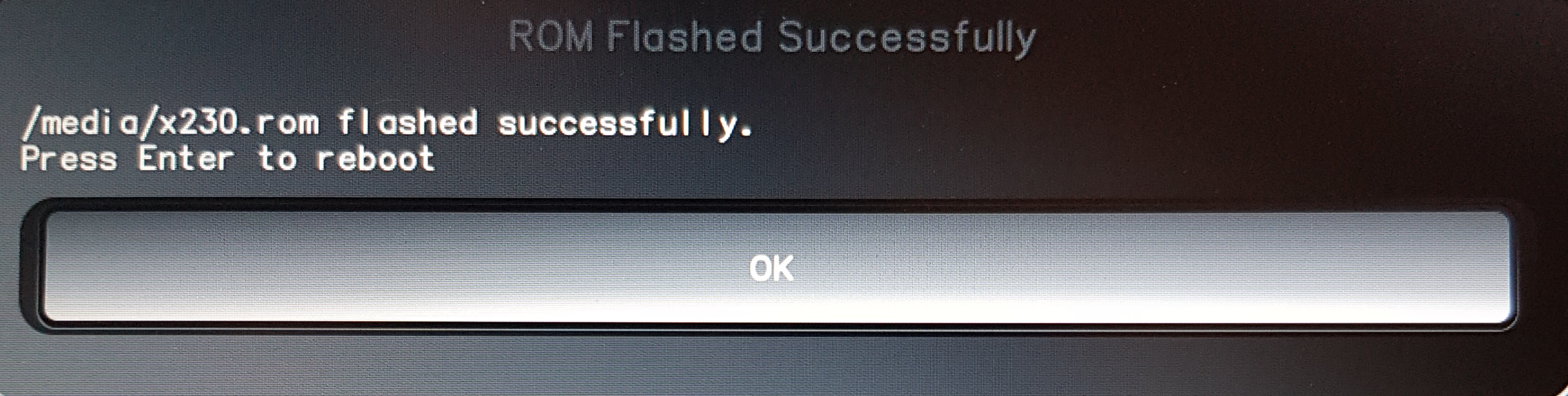
Heads 返回后,请按照提示完成以下步骤。
Further Steps
请按照 Heads 的提示重新封装密钥,并更新 TPM 磁盘解锁密钥的密码(如果已配置)。如果出现``ERROR: TOTP Generation Failed!``,请参阅 Factory Reset Heads v2.0+;如果是旧版固件,请参阅 工厂重置。请使用与您的 Heads 版本相匹配的操作流程。 TPM 出厂重置会更改安全配置;这并非针对无法开机的 NitroPad 的修复方案。
备注
有用户反映,NitroPad NV41在显示Heads启动画面时会出现持续卡死的情况。如果更新完成后该问题仍然存在,请联系硝基技术支持以获取针对该机型的具体指导。在EC更新或内存训练过程中,请勿对黑屏状态下的设备进行反复强制重启,尤其是在NitroPad V54和V56机型上。
故障排除
首先确定故障症状:无电源或充电指示灯、通电但屏幕黑屏,或者Heads启动但操作系统无法启动。以下检查步骤适用于运行Nitrokey Heads的NitroPad。不同型号的硬件布局各不相同;请使用对应型号的拆解说明。
重要
在更新后的首次重启时,请先参阅`Boot Time After Update<firmware-update.html#boot-time-after-update>`__,然后再尝试进行故障排除。下文所述的重置和硬件检查仅适用于已完成更新或经支持部门确认不再进行更新的设备。
无电源或充电指示灯
检查墙壁插座、适配器、充电线和直流插头。检查充电线和充电插座是否有损坏、异物或连接松动。检查插座前请先断开电源;切勿将金属物体插入插座。
如果有的话,请尝试使用已知可正常工作且兼容的适配器。确保电压、极性、连接器及额定功率均与要求匹配;切勿使用任意笔记本电脑适配器。如“准备工作”部分所述,进行 NV41、V54 和 V56 固件更新时,请使用原装直流圆柱插头适配器。
如果电池可能已没电,请先充电至少 30 分钟,然后再尝试重新启动 NitroPad。如果能启动,请检查操作系统的电池状态,以区分是适配器未连接,还是已检测到适配器但未充电。
如果更新停止后,请尝试进行电源重置:关闭 NitroPad 电源,拔下电源适配器,并移除外接 USB 设备。长按电源键 30 秒,松开按键,重新连接电源适配器,然后尝试启动一次。
如果问题仍然存在,请在能够安全接触连接器的情况下,按照下文所述进行 CMOS 重置,或者联系硝基技术支持。
仅凭LED指示灯未亮,无法确定是固件还是硬件出现故障,也无法证明固态硬盘已损坏。技术支持人员可能需要检查电源电路以及BIOS和EC固件。
有电但屏幕仍为黑色
排除上述所述的正常首次启动延迟,并确认电源和电池均已就绪。
一旦更新停止运行,请通过HDMI测试外接显示器。如果外接显示器正常工作,问题可能出在内置显示屏或其连接上。如果机型和固件支持,使用兼容的USB-C显示器或扩展坞也可能有所帮助。仅凭无法显示外部画面,并不能证明主板存在故障。
请尝试执行以下 CMOS 重置操作。
如果您可以在 NitroPad 内部安全操作,请在重新插入内存条之前先断开适配器和主电池的连接。如果有两个内存条,请一次只测试一个,每次启动时都要重新连接电池和适配器。 若仅安装一个内存条,请测试另一个插槽。每次更换后,请预留时间让内存完成初始化;硬件故障排除指南建议,在单条内存条测试完成后,应等待约30分钟,再更改配置。
如果问题仍未解决,请在尝试外部固件恢复或更换硬件之前,联系硝基技术支持。
Heads Starts but the Operating System Does Not
如果“Heads”菜单可见,请先根据“Heads”的提示和相应的硝基指南,处理任何报告的 TPM、签名或磁盘解锁错误。确认 SSD 已被检测到,并使用 默认启动 选择相应的操作系统启动选项。
如果操作系统或其引导加载程序损坏,请使用其恢复工具。重新安装是备份可恢复数据后的最后手段;此操作可能会擦除硬盘。重新安装操作系统无法修复无法开机或无法连接到Heads的NitroPad。
CMOS Reset
CMOS 重置会清除存储的固件设置。它不会**也不会** 重写受损的 BIOS 或 EC 固件,且与 Heads TPM 出厂重置不同。
请确保当前没有正在进行的固件更新。关闭 NitroPad,拔下电源适配器,并断开外部设备的连接。
请按照该设备的型号说明打开设备,并断开主电池的连接。如果您无法安全地识别或接触到连接器,请联系硝基技术支持进行重置。
断开CMOS电池的连接,并将适配器、主电池和CMOS电池保持断开状态**30分钟** 。
重新连接 CMOS 电池和主电池,合上设备,然后重新连接适配器。再等待五分钟 ,然后再尝试开机。
请先尝试重启一次,并留出时间进行内存训练。如果问题仍然存在,请停止反复重置,并联系 Nitrokey 技术支持。
外部固件恢复与支持
如果上述检查均未成功,则可能需要通过外部编程来修复BIOS和/或EC。它们是独立的固件组件,且版本必须兼容。重置CMOS或重新安装操作系统无法替代对损坏固件的修复。
外部BIOS编程(例如使用合适的CH341A设置)是一项高级维修操作,需要针对该机型使用正确的硝基 Heads镜像、芯片电压和连接器。 在进行外部BIOS编程之前,请按照该机型的恢复流程断开适配器、主电池和CMOS电池的连接。EC恢复有其特定的连接和供电要求;请勿将其与BIOS操作流程混用。在刷写之前,请向硝基技术支持咨询相应的恢复或维修流程。若为硬件故障,则可能需要对元器件或主板进行维修。
When contacting Nitrokey support, include:
NitroPad 的型号、序列号和订单编号。
如果已知,请提供先前安装的固件版本,以及所选的ZIP文件名和发布版本。
是否有任何错误信息,是否闪现“操作成功”的提示,以及首次重启时发生了什么,包括您等待了多长时间。
所使用的电源适配器、电池状态、LED 指示灯以及风扇的工作状态。
已尝试过的故障排除步骤。
Reference Guides
上述关于 Heads 的更新及首次启动指南基于`中的上游 Heads 更新指南<https://osresearch.net/Updating>`__ 以及`中的平台专用 Heads 更新说明<https://docs.dasharo.com/unified/novacustom/firmware-update/>`__。本操作所需的固件下载链接请参见“准备工作”部分中提供的 Nitrokey 发布版本。
这些指南中的硬件检查步骤已针对配备硝基 Heads 的 NitroPad 进行了调整。请参考本页面中针对 Heads 的具体说明,以进行启动选择、安全提示和固件恢复:
`充电检查<https://novacustom.com/knowledge-base/laptop-not-charging/>`__.
`启动故障检查<https://novacustom.com/knowledge-base/laptop-is-not-booting-what-can-i-do/>`__.
`CMOS 重置<https://novacustom.com/knowledge-base/how-to-perform-a-cmos-reset/>`__.
`电源和黑屏检查<https://novacustom.com/knowledge-base/laptop-not-turning-on-what-can-i-do/>`__.
`特定平台的硬件恢复说明<https://docs.dasharo.com/unified/novacustom/recovery/>`__.