Systemgendannelse
The following describes the recovery process for the NetHSM system software. These instructions are only applicable if the API is inoperable, e.g. not responding to API requests. In the case of an operable API perform a factory reset instead. Follow the instructions precisely to prevent any accidental deletion of data.
Vigtigt
Systemgendannelsen virker kun, hvis GUID-partitionstabellen (GPT) og selve partitionerne på disken ikke er beskadigede. En korruption kan indikeres af følgende besked under opstart.
Booting 'NetHSM automatic boot (USB or primary system)'

GRUB: No valid configuration found on (usb0).
GRUB: No valid configuration found on (ahci0,gpt1).

GRUB: Booting failed. System will switch off in 10 second.
Hvis de er beskadigede, vil denne vejledning resultere i en fabriksinstallation af NetHSM-systemsoftwaren.
Systemgendannelsen kan udføres på følgende måde.
Download installationsbilledet, der slutter med …installer.img.zip fra den medfølgende private downloadside.
Vigtigt
Download installationsbilledet af den samme version, som var installeret på tidspunktet for beskadigelsen. En nedgradering eller opgradering, der springer versioner over, understøttes ikke.
Pak installationsbilledet ud.
Skriv installationsbilledet til et USB-flashdrev. Til det kan du bruge det grafiske værktøj balenaEtcher. På Linux kan du også bruge kommandolinjeværktøjet dd. Ignorer enhver advarsel om, at der mangler en partitionstabel.
Tilslut USB-nøglen til en USB-port på NetHSM. NetHSM kan starte op fra USB-portene på maskinens forside og de fire lodret placerede porte på maskinens bagside.
Bemærk
Some USB drives are incompatible with the NetHSM. This results in the NetHSM not recognizing them as a boot media. In case the NetHSM does not boot from the connected USB drive, try a different USB drive model. Best results are achieved with drives that have smaller capacities and USB 2.0 interface.
Optionally: Connect a keyboard and monitor with the NetHSM.
Make sure the system is turned off, but connected to power.
Turn the NetHSM on by pressing the power button on the front.
Now the software is going to be installed. Wait for ca. one minute until the NetHSM shuts down. Optionally, if you have a monitor connected: When you see the boot menu, select NetHSM automatic boot (USB or primary system) in the first menu and then NetHSM Software Installer in the second menu.
Advarsel
Vælg IKKE
NetHSM Factory Reset - DELETES ALL DATA!fra menuen. Det vil slette dataene på disken, så de ikke kan gendannes.
Download the installer image ending with
installer.img.zipfrom the provided private download page.Vigtigt
Download installationsbilledet af den samme version, som var installeret på tidspunktet for beskadigelsen. En nedgradering eller opgradering, der springer versioner over, understøttes ikke.
Sørg for, at systemet er slukket, men tilsluttet strøm, og at tænd/sluk-knappen på bagsiden er tændt.
Forbind BMC-netværksporten med et netværkskabel.
Se billedet nedenfor for at identificere BMC-netværksporten.
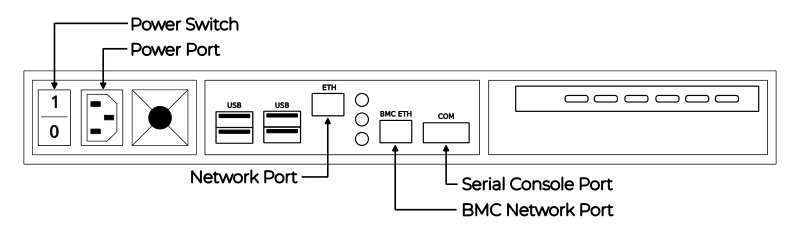
Bagsiden af serveren
Som standard vil BMC vente på en adressetildeling med DHCP. Hvis DHCP ikke er tilgængelig, kan den link-lokale adresse bestemmes med Nmap. Kommandoen
nmap <network-in-cidr-notation> -p 80 --openreturnerer en liste over værter med åben port 80.Åbn BMC’s hjemmeside i en webbrowser ved hjælp af den IP-adresse, der blev fundet i det foregående trin. For at logge ind er standardoplysningerne brugernavn
bmc_adminog adgangskode8mCU$3r0nE.Vigtigt
Hvis du støder på en fejl med uautoriseret login på BMC’s webinterface, kan det være tre af følgende problemer.
Forkert brugernavn eller adgangskode.
Under fabriksnulstilling genererer BMC et nyt TLS-certifikat. Nogle webbrowsere fejler med forbindelsesfejl, når certifikatet ændres, mens det samme vindue forbliver åbent. Luk webbrowservinduet, og åbn et nyt.
BMC-softwaren viser nogle gange det problem, at den ikke accepterer en ældre sessionscookie, som stadig ligger i webbrowserens cache. Ryd browserens cache, og prøv igen.
Monter det downloadede installationsbillede ved i menuen til venstre at klikke på FRU: Hermes CFL (with TPM) Nitrokey Config efterfulgt af Virtual media i undermenuen. I midten åbner du fanen usb0, og klikker på knappen Attach media.
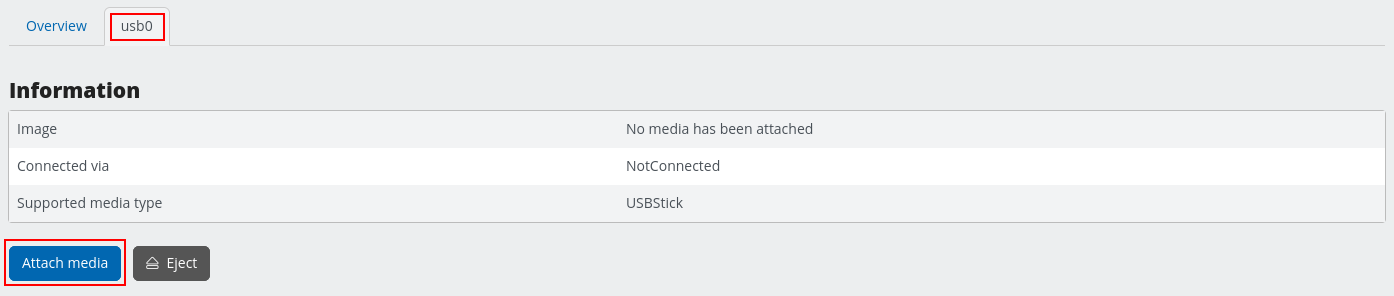
BMC-menu til tilslutning af USB-enhed
I åbningsdialogen skal du vælge Stream lokal fil via browser som Overførselsmetode. Klik på knappen Browse… og vælg det downloadede installationsbillede. Bekræft handlingen med knappen Submit.
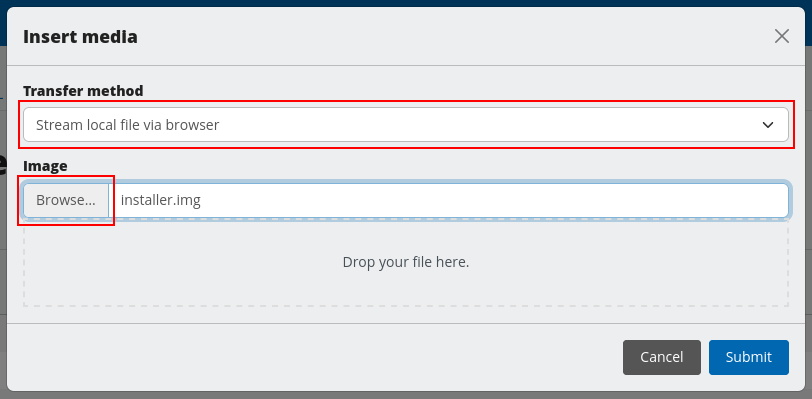
BMC-menu til valg af USB-billede
I menuen til venstre skal du vælge FRU: Hermes CFL (with TPM) Nitrokey Config, og derefter Remote KVM.
Klik i midten på knappen Open a floating Remote KVM window i øverste højre hjørne af VGA-udgangsboksen.
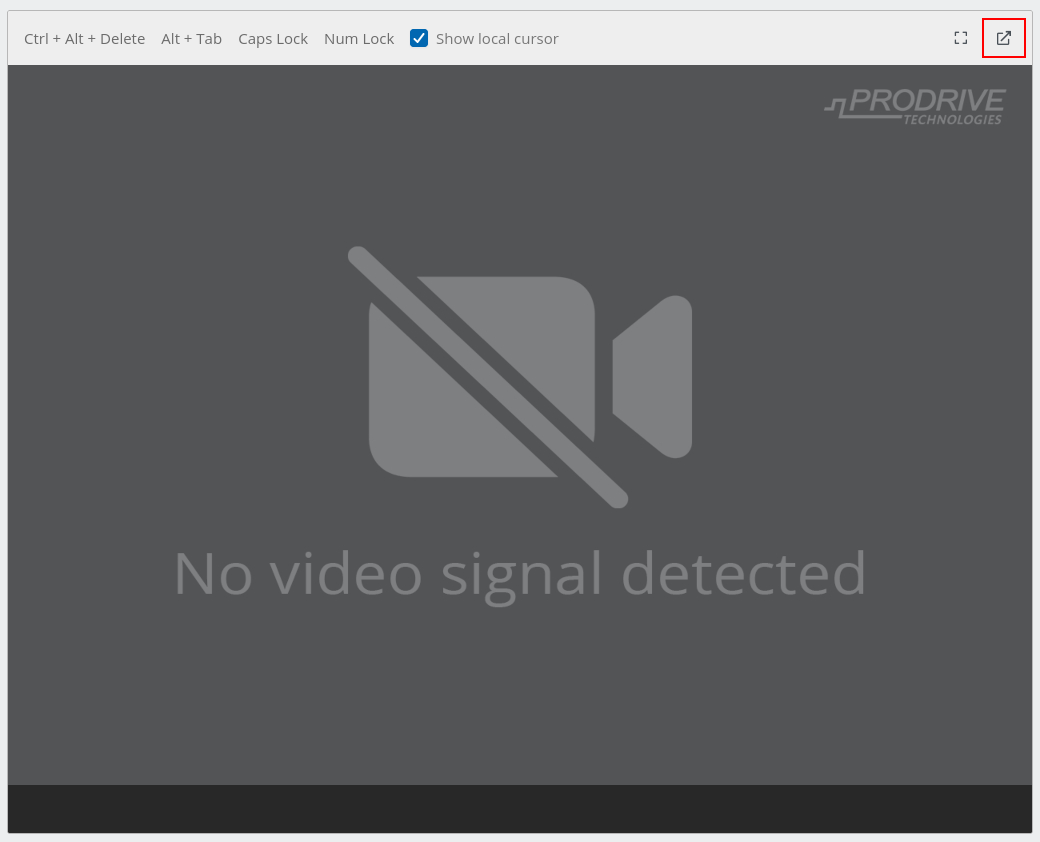
BMC KVM-konsolvisning
Dette vindue viser dig det grafiske output fra NetHSM-installationsprogrammet. Hold dette andet vindue åbent sammen med hovedvinduet fra BMC.
Skift til visningen Overview fra toppen af menuen til venstre.
I feltet Override Boot Device, vælg USB_BMC-virtual_media fra rullemenuen ved siden af Select a Boot Device.
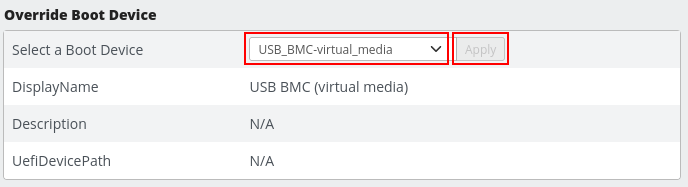
Indstilling af BMC-opstartsenhed
I boksen med titlen FRU: Hermes CFL (with TPM) Nitrokey Config, vælg On fra drop-down menuen ved siden af Power. Bekræft med knappen Apply.
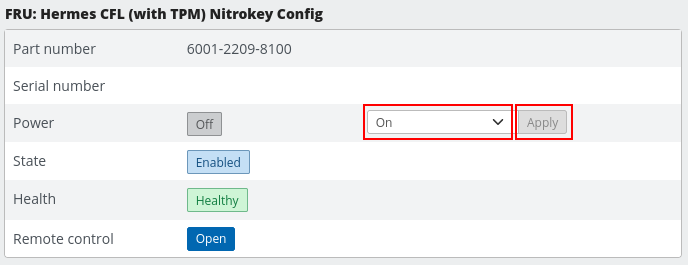
BMC-opstartsindstilling
I det tidligere åbnede vindue Remote KVM kan du nu se installationsguiden.
KVM-vinduet viser nu boot-dialogen. Bekræft valget af
NetHSM automatic boot (USB or primary system)med Enter tasten.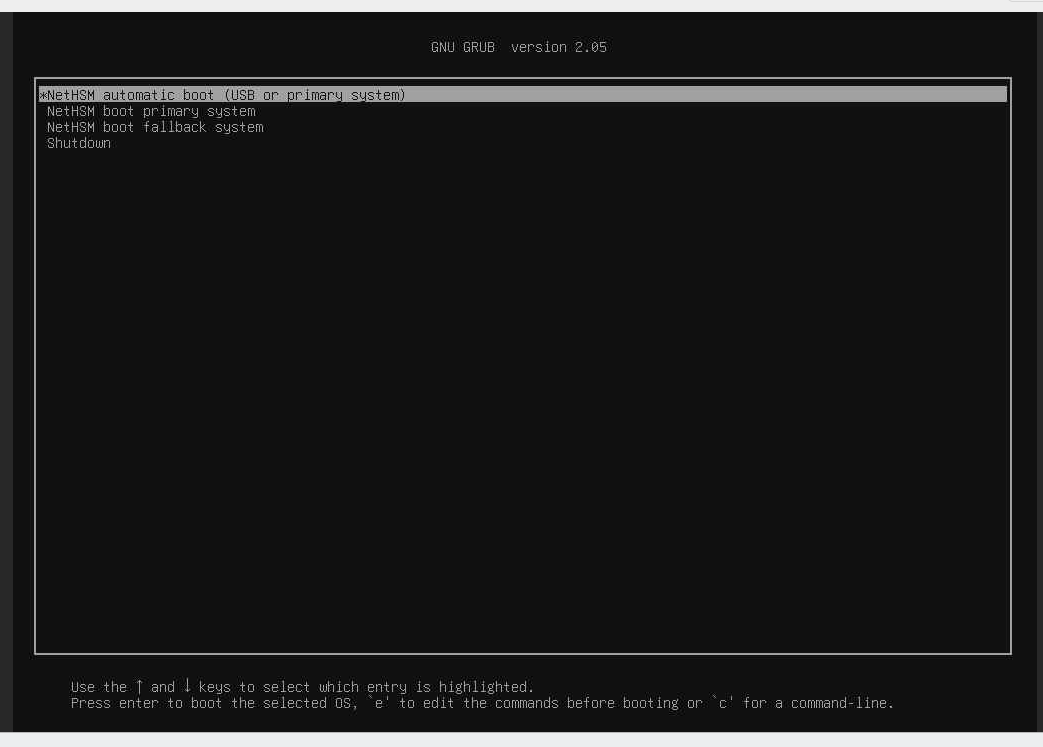
Valg af NetHSM-opstart i BMC KVM-konsollen
I den følgende dialog bekræfter du valget af
NetHSM Software Installermed Enter tasten.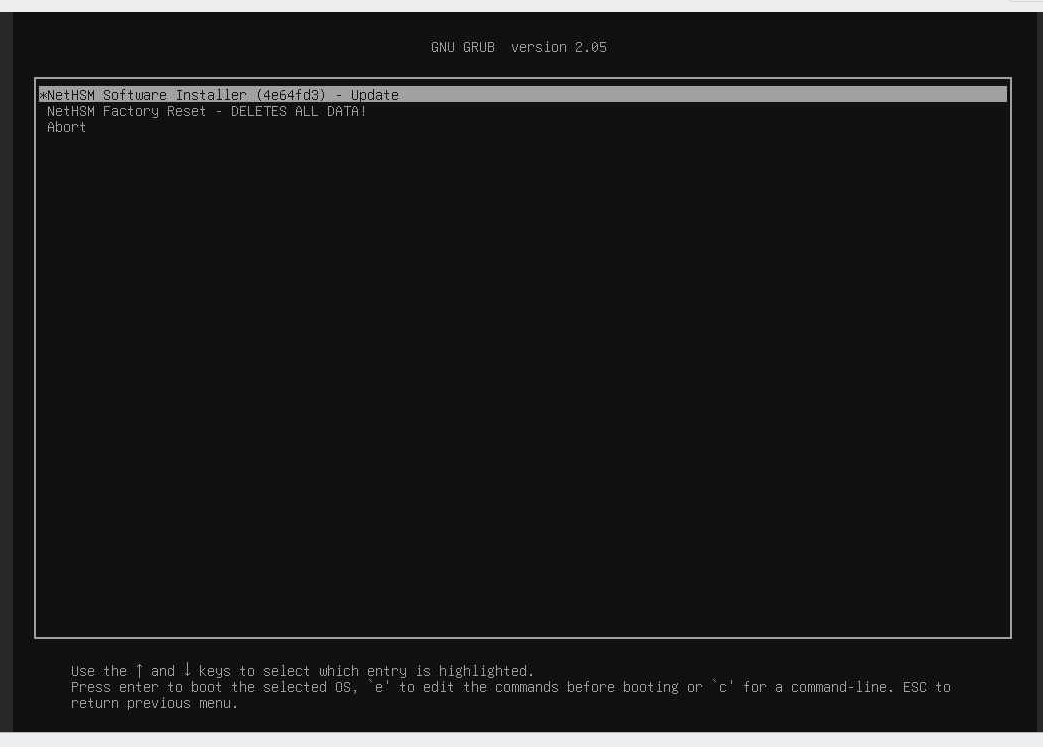
Valg af NetHSM-installationsprogram i BMC KVM-konsollen
Advarsel
Vælg IKKE
NetHSM Factory Reset - DELETES ALL DATA!fra menuen. Det vil slette dataene på disken, så de ikke kan gendannes.
NetHSM Installer vil installere systemsoftwaren og lukke ned.