デスクトップログインとLinuxユーザー認証
Compatible Nitrokeys |
|||||||
|---|---|---|---|---|---|---|---|
✓ active |
✓ active |
⨯ inactive |
⨯ inactive |
✓ active |
⨯ inactive |
⨯ inactive |
✓ active |
はじめに
This guide will walk you through the configuration of Linux to use FIDO Universal 2nd Factor, i.e. FIDO U2F with libpam-u2f and compatible Nitrokeys.
You will set up your Nitrokey as a second factor for authentication. This means you will need your usual login method (likely your password) and your Nitrokey to login.
ニトロキーを別のログイン方法(パスワードまたはニトロキー)として使用したい場合は、メインガイド終了後に`別の認証方法<#alternative-authentication-method>`__ を参照してください。
If you want to login to you computer using Nitrokey Pro 2, Nitrokey Storage 2 and Nitrokey Start you can visit the instructions available here.
警告
以下のガイドは、あなたのコンピュータをロックアウトする可能性があります。このようなリスクを認識した上で、まずはセカンダリのコンピューターで以下の手順を使用するか、完全にバックアップを取った後に使用することをお勧めします。
PAM モジュール を設定した後、データにアクセスできなくなる場合があります。
要求事項
Ubuntu 24.04 with Gnome Display Manager (GDM).
使い方
バックアップユーザーを作成し、root権限を付与する。
$ sudo adduser <backup_user>
$ sudo usermod -aG sudo <backup_user>
U2Fを1人のユーザーで設定したい場合、ユーザーセッションからロックアウトされても、``<backup_user>``でログインし、メンテナンスを進めることができます。
インストール
libpam-u2f。On Ubuntu 24.04 it is possible to download directly
libpam-u2ffrom the official repos$ sudo apt install libpam-u2f
注釈
あるいは、
libpam-u2fを Git から構築することも可能です。ライブラリが正しくインストールされていることを確認するには、次のコマンドを入力します。
$ file /lib/x86_64-linux-gnu/security/pam_u2f.so
出力は以下のようになります。
/lib/x86_64-linux-gnu/security/pam_u2f.so: \ ELF 64-bit LSB shared object, x86-64, version 1 (SYSV),\ dynamically linked, BuildID[sha1]=1d55e1b11a97be2038c6a139579f6c0d91caedb1, stripped
U2Fの設定ファイルを生成する。
To generate the configuration file we will use the
pamu2fcfgutility. First plug your Nitrokey (if you did not already), and enter the following command:$ pamu2fcfg > ~/u2f_keys
Once you run the command above, you will need to touch the device while it flashes. Once done,
pamu2fcfgwill append its output theu2f_keysfile in the format:<username>:KeyHandle,PublicKey,flags
This will look something like the following:
nitrouser:fS6vQ9uWa0VizcczyZ/bvk5kcQJkIJOC/21/e7dXFe/fnONSL705EkeiUpZpL/3seAWL/qW4/mqb0/WtiZoP/NOLTRM4EEAg1ANLsfYgSzRd/AjsW3z8kJwgckbvwDUyB90ByR09XtBhuE41vMsEk6J+9CS0+ZuPSB0KXRG7z2yZpQLldjE/ijsdIdd8Ct2oXSiZ/zTb/t5kRafNJVkp=,Oo4U9XvIhI9r0WNnvoMwG5/pbgwYd4GMCYEinhWcsI2hKUebYj92JOxDsSa3zd2A9OB0ofXgB16FD2naev3YmLch==,es256,+presence
なお、この出力は``pamu2fcfg`` によって直接生成されたものではなく、機密情報は含まれていない。これは純粋に、期待される出力の形式と長さを示すためのものである。
Tip
The file must be named
u2f_keysまず、1人のユーザーでこの手順をテストすることをお勧めします。他のユーザーの設定はセクション7に追加されます。
Setting up a backup Nitrokey
This step is optional, however it is advised to have a second Nitrokey as backup in the case of loss, theft or destruction of your primary Nitrokey.
To set up a backup key, repeat the procedure above, and use
pamu2fcfg -nlike this:$ pamu2fcfg -n >> ~/u2f_keys
This will omit the
<username>field, and the output is appended to the line with your<username>, this will look something like this:<username>:Zx...mw,04...0a:xB...fw,es256,+presence:04...3f,es256,+presence
Securing the config file
より良いセキュリティのために、コンフィグファイルが生成された後、生成されたファイル``~/u2f_keys`` を``/etc/Nitrokey/`` に移動し、以下のコマンドを使ってアクセス権を変更する:
$ sudo mkdir /etc/Nitrokey
$ sudo mv ~/u2f_keys /etc/Nitrokey/
$ sudo chmod 644 /etc/Nitrokey/u2f_keys
Pluggable Authentication Moduleの変更
PAM。``/etc/pam.d/``の下でPAMモジュールファイルを設定する。これはテスト段階であり、ステップ8で動作が確認されたら、設定を実行する。
In this guide we will modify the
common-authfile as it handles the authentication settings which are common to all services, other options are described in PAM Modules. You can modify the file with the following command:$ sudo editor /etc/pam.d/common-auth
Add the following line at the bottom of the file:
#Nitrokey config
auth    sufficient pam_u2f.so authfile=/etc/Nitrokey/u2f_keys cue [cue_prompt=Please touch the device.] prompt
Tip
テストにはenoughを使用しており、ステップ8でrequiredに変更する。
セントラル認証マッピングを使用しているので、``pam_u2f``オプションで使用するファイルの場所を``authfile``に指示する必要があります。
If you often forget to insert the key,
promptoption makespam_u2fprintInsert your U2F device, then press ENTER.and give you a chance to insert the Nitrokey.If you would like to be prompted to touch the Nitrokey,
cueoption will makepam_u2fprintPlease touch the device.message. You can change the message in[cue_prompt=Please touch the device.].
注釈
なぜボトム配置なのか? PAMはモジュールを上から下に処理する。U2Fコンフィギュレーションを一番下に配置することで、パスワード認証が最初にチェックされ、二要素ワークフロー(パスワード+U2F)が作成される。
代替認証オプション(パスワードまたはニトロキー)、および行位置と制御フラグが認証にどのように影響するかについての詳細な説明は、`代替認証方法<#alternative-authentication-method>`__ を参照してください。
``common-auth``を修正したら、ファイルを保存して終了します。
You can test the configuration by typing
sudo lsin the terminal. After typing in your password you should be prompted with the messagePlease touch the device.and have a similar output on the terminal:nitrouser@nitrouser:~$ sudo ls [sudo] password for nitrouser: Please touch the device.
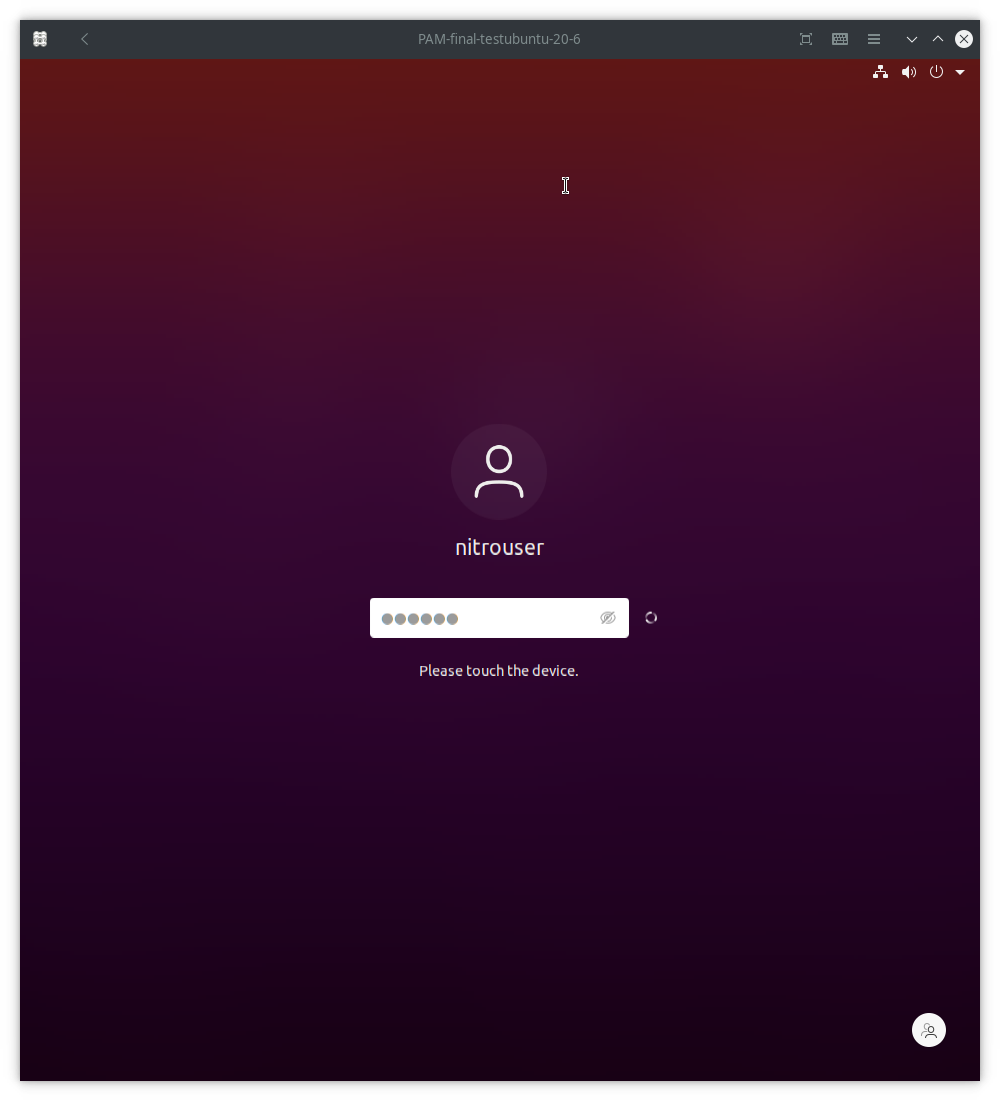
You can also test your configuration by logging out of the user session and logging back. A similar screen should be displayed once you you unplug/replug yout Nitrokey and type your password:
Setting up multiple users
ニトロキーを使った認証がうまくいったことを確認したら、システムの他のユーザー用にU2F設定ファイルをセットアップします。
警告
U2F設定ファイルですべてのユーザーを設定せず、ステップ8でニトロキー認証を続行すると、設定されていないユーザーではログインできなくなります!
To configure u2f for multiple users,
pamu2fcfgtakes the-u <username>option, the output can be appended to theu2f_keysfile like this:$ sudo pamu2fcfg -u <username> >> /etc/Nitrokey/u2f_keys
このユーザーにバックアップニトロキーを追加するには、バックアップニトロキーを接続し、プライマリユーザーと同じ操作を行います:
$ sudo pamu2fcfg -n >> /etc/Nitrokey/u2f_keys
その後、システム上のすべてのユーザーに対してこのプロセスを繰り返す。
Enforcing Nitrokey second factor authentication
ニトロキーによる認証がまだ強制されていないことにお気づきかもしれません。ニトロキーによる認証が機能することを確認したら、
sufficientフラグを``required`` に変更することで、ニトロキーによる認証を強制することができます。警告
このステップを続ける前に、あなたが持っていることを確認してください:
ニトロキーによる認証が確かに機能することをテストした。
ニトロキーのバックアップを設定してください。そうしないと、ニトロキーを紛失したり壊したりした場合、コンピュータにアクセスできなくなります!
慎重に進めよ!
そのためには、
PAM設定ファイルを編集する必要がある:$ sudo editor /etc/pam.d/common-auth
ファイルの一番下に追加した行の``sufficient`` を``required`` に変更してください。以下のようになります:
#Nitrokey config
auth    required pam_u2f.so authfile=/etc/Nitrokey/u2f_keys cue [cue_prompt=Please touch the device.] prompt
After completing the setup, it is recommended to reboot your computer and unplug/replug the Nitrokey.
Alternative Authentication Method
パスワードの代わりにニトロキーを使用したい場合(パスワードまたはニトロキー)、代わりにこれを設定することができます:
Configuration Steps:
PAMコンフィギュレーション行を**のトップ** ` /etc/pam.d/common-auth` に移動する(他の認証モジュールの前)。
sufficient制御フラグを保持する。
これにより、どちらかの要素だけで認証が可能になる。二要素認証よりもセキュリティが低いことに注意してください。
認証モードを理解する
ラインポジションとコントロールフラッグの組み合わせが、認証モードを決定する:
Position |
Control Flag |
Authentication Mode |
Use Case |
|---|---|---|---|
一番下(pam_unixの後) |
|
Second factor (testing) |
安全なテスト段階 |
一番下(pam_unixの後) |
|
第2ファクター(強制) |
Production security (main guide) |
トップ(pam_unix以前) |
|
Alternative factor |
Convenience (password OR key) |
PAMの仕組み
PAM はモジュールを上から下へ順番に処理する。制御フラグは、成功または失敗が認証全体にどのように影響するかを決定する:
sufficient`:他のモジュールが成功すれば、失敗は無視される。
required`:成功は必須。失敗すると認証に失敗する。
これはあなたにとって何を意味するのか:
代替認証(トップ+十分):
または ニトロキーだけでログインできます。
If authentication with the Nitrokey succeeds, no password is required
ニトロキーの認証が失敗したり、スキップされたりしても、パスワードは有効です。
二要素認証より便利だが、安全性は劣る。
Security implications:
パスワードを知っている攻撃者は、ニトロキーがなくてもログインできる。
ニトロキーに物理的にアクセスできる攻撃者は、パスワードなしでログインすることができます。
最大限のセキュリティよりも利便性を重視する場合にのみ使用する。
コントロール・フラグの詳細とその意味については、`コントロール・フラグ<#control-flags>`__ を参照のこと。
PAMモジュール
いくつかのPAMモジュールファイルがあり、必要に応じて変更することができます。
By modifying
/etc/pam.d/common-authfile, you will be able to use you Nitrokey for 2nd factor authentication for graphic login andsudo.If you wish to use FIDO U2F authentication solely for Gnome's graphic login, you might prefer to modify the
/etc/pam.d/gdm-passwordまた、``/etc/pam.d/sudo``コマンドを使用する際にFIDO U2Fを使用したい場合は、``sudo``ファイルを変更することもできます。
制御フラグ
controlフラグは、認証が成功した場合と失敗した場合のPAMモジュールの動作を決定 する。ステップ6では、sufficient フラグをテスト用に使用し、required に変更して実施した。
使用可能な制御フラグは以下の通り:
required: The module result must be successful for authentication to continue. This is the most critical flag and can lock you out of your computer if you do not have access to the Nitrokey.requisite。``required``と似ていますが、特定のモジュールが失敗を返した場合には、制御は直接アプリケーションまたは上位のPAMスタックに戻されます。また、このフラグは、Nitrokeyにアクセスできない場合、コンピュータからロックアウトすることができます。sufficient: The module result is ignored if it fails. In case of success, control is directly returned to the application, or to the superior PAM stack. This means no other PAM modules will be executed. Thesufficientflag is considered safe for testing purposes.optional: The success or failure of this module is only important if it is the only module in the stack associated with this service+type. Theoptionalflag is considered safe to use for testing purposes.
警告
If
requiredorrequisiteis set, the failure of U2F authentication will cause a failure of the overall authentication. Failure will occur when the configured Nitrokey is not plugged, lost or destroyed.PAMモジュールの設定を誤り、
requiredや ``requisite``のフラグを使用した場合は、コンピュータへのアクセスを失います。また、セントラル認証マッピングを設定した場合、
sudoを使用することができなくなります。*また、requiredやrequisiteのフラグを使用していた場合は、使用できなくなります。また、スマートカードログインが強制されていて、
requiredまたは``requisite`` フラグを使っている場合、 Gnome Display manager を使ってログインできなくなる可能性があります。詳しくはトラブルシューティングを参照してください。
トラブルシューティング
GDMを使用してユーザーアカウントにログインする際の問題
例えば、opencs-pkcs11 がインストールされている場合、Gnome Display Manager (GDM) は、スマートカードが設定されていなくても、スマートカード (ニトロキーのような) が接続されると、すぐにスマートカードログインをデフォルトで強制することがあります。このため、u2f を使ってユーザーアカウントにログインできないことがあります。sufficient 制御フラグを設定している場合は、すべてのスマートカードを抜いて、パスワードを使ってログインしてください。スマートカードの強制をオフにするには、以下のコマンドを実行してください:
$ sudo -u gdm env -u XDG_RUNTIME_DIR -u DISPLAY DCONF_PROFILE=gdm dbus-run-session gsettings set org.gnome.login-screen enable-smartcard-authentication false