はじめに
To access the OpenPGP smart card of the Nitrokey, install the package libccid. On Debian/Ubuntu based Distributions type in terminal: .. code-block:: bash
ニトロキーのOpenPGPスマートカードにアクセスするには、libccidパッケージをインストールします。Debian/Ubuntuベースのディストリビューションでは、ターミナルで次のように入力します: ... code-block:: bash
Important: Once you plug in the Nitrokey, your computer will start the Keyboard Setup Assistant. Don't run through this assistant but exit it right away.
Nitrokeyをコンピュータに接続し、すべてのダイアログを確認すると、USBスマートカードデバイスドライバがほぼ自動的にインストールされます。
注釈
Windowsがスマートカード用の追加デバイスドライバーのインストールに失敗することがあります。この警告は無視して構いません。
`Nitrokey App <https://www.nitrokey.com/download>`_をダウンロードして起動します。
Nitrokey App をダウンロードし、起動します。おそらく、Nitrokey Storage の暗号化されていないパーティションに保存したいのでしょう。
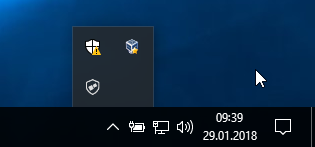
Download and start the Nitrokey App. Perhaps you want to store it on the unencrypted partition of your Nitrokey Storage. There won't open a window, but an icon appears in the system tray (see screenshot below). Please right-click on this icon to use all the options of the App.
Open the About window from Nitrokey App's menu and check if you have the latest firmware installed. If it's not the latest, please update.
Nitrokeyアプリを使って、デフォルトのUser PIN(デフォルト:123456)とAdmin PIN(デフォルト:12345678)を自分の好きなものに変更してください。
これでNitrokeyは使用可能です。
注釈
MacOSのいくつかのバージョンでは、カスタムの`ccidドライバー<https://github.com/martinpaljak/osx-ccid-installer>`_をインストールする必要がありますが(情報は`こちら<https://ludovicrousseau.blogspot.com/2016/04/os-x-el-capitan-and-ccid-driver-upgrades.html>`_を参照)、一般的なMacOSではドライバーがオンボードで提供されています。
多くの使用例では、デバイスにOpenPGPまたはS/MIMEの鍵をインストールする必要があります(下記参照)。
OpenPGPまたはS/MIMEによる鍵の作成
電子メールの暗号化には、広く使われている2つの規格があります。OpenPGP/GnuPGは個人に人気がありますが、S/MIME/x.509は主に企業で使用されています。どちらを選ぶか迷った場合は、OpenPGPを使うとよいでしょう。
To learn more about how to use OpenPGP for email encryption with the Nitrokey, please refer to chapter OpenPGP Email Encryption.
To learn more about how to use S/MIME for email encryption with the Nitrokey, please refer to chapter S/MIME Email Encryption.