Ubuntu
Nota
A porta de áudio (jack) do NitroPad T480s não está a funcionar automaticamente. Para selecionar manualmente um auscultador ligado, instalar o programa pavucontrol e selecionar o auscultador ligado em Output Devices (Dispositivos de saída).
Verificação de Hardware Selado
If you have ordered the unit with the option “sealed screws and sealed bag”, please verify the sealing before unpacking. If you do not know what this means, skip this section.
Procedimento de início seguro
Antes do primeiro arranque, deve familiarizar-se com o procedimento de arranque seguro ` <../secure-starting-procedure.html>` __.
Workaround Ubuntu 26.04 & 24.04.
There is an issue that prevents Ubuntu to show the LUKS decryption screen, if started with heads. It’s there and you can type in your password blindly, after that Ubuntu starts normal. Follow these steps:
Heads starts. If nothing needs to be done, Ubuntu will start automatically.
Passado algum tempo, verá um ecrã preto com uma escrita branca nas últimas linhas:
Locking TPM2 platform hierarchy...
Starting the new kernel
Estas linhas indicam que o Ubuntu está a iniciar.
Aguarde 5 segundos e, em seguida, introduza a sua palavra-passe **** («12345678» se estiver a iniciá-lo pela primeira vez) seguida de Enter.
Agora verá o ecrã normal do Ubuntu. Quando inicia pela primeira vez, tem de completar a configuração inicial.
Como Começar
Após a compra, as senhas são definidas para um valor padrão e devem ser alteradas por você:
Prima Enter («Default Boot») após arrancar o sistema, desde que o NitroPad não tenha mostrado nenhum erro e a Nitrokey esteja acesa a verde (ver acima).
Next, the system will prompt you to enter the passphrase to decrypt the hard disk. The passphrase is initially
12345678. This was changed on the 10.04.2024 so if12345678`is not working try the old defaultPleaseChangeMe`.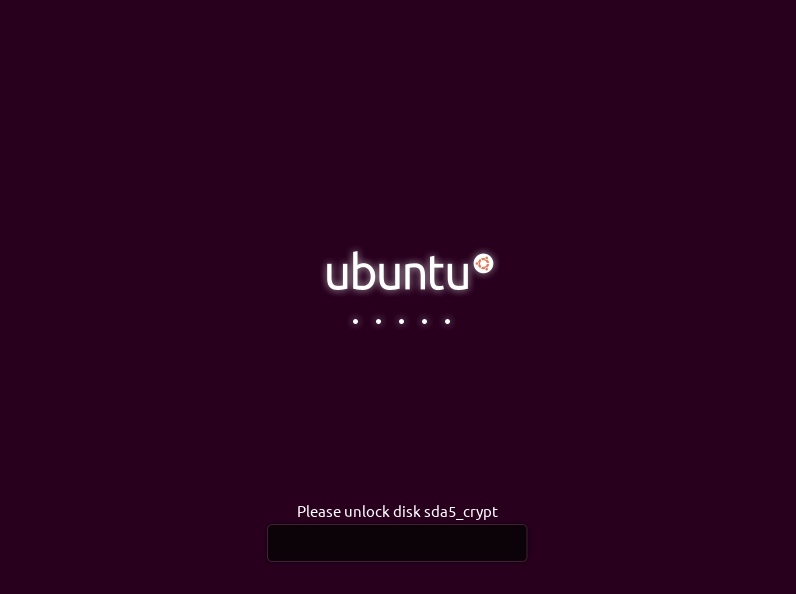
O sistema irá então guiá-lo através do processo de criação de uma conta de utilizador. Depois disso, você deve ter iniciado o sistema com sucesso e já pode usá-lo normalmente.
Open the pre-installed Nitrokey App and change the PINs of your Nitrokey. To learn more about how to change the PINs, please refer to chapter Change User and Admin PIN.
Change the passphrase for disk encryption. To learn more about how to change the passphrase for disk encryption, please refer to chapter Change Disk Encryption Passphrase. This passphrase is different from your user account’s passphrase.
Comportamento após uma atualização do sistema
The NitroPad and NitroPC firmware checks certain system files for changes. If your operating system has updated important components, you will be warned the next time you boot the NitroPad or NitroPC. This could look like this, for example:
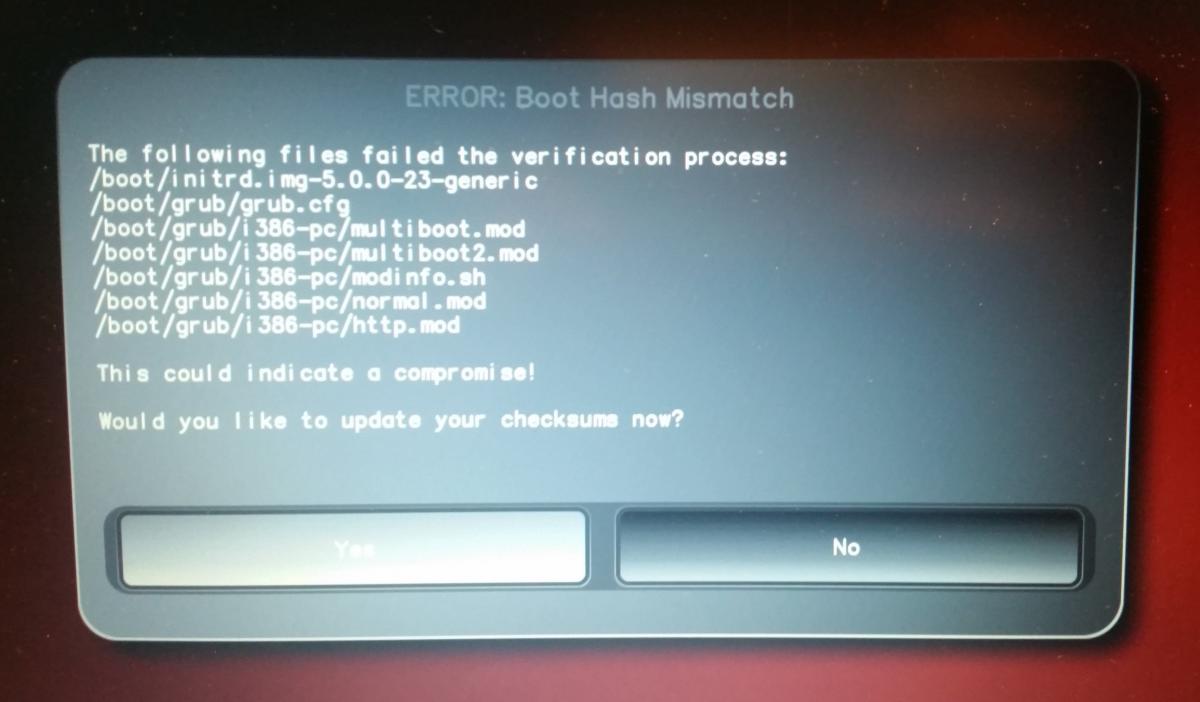
That’s why it’s important to restart your NitroPad or your NitroPC under controlled conditions after a system update. Only when the new status has been confirmed can you leave the device unattended again. Otherwise, you will not be able to distinguish a possible attack from a system update. Detailed instructions for a system update can be found here.