You should backup all data from the device before upgrading, as
firmware upgrades may destroy all data on the device (especially
coming from firmware version <0.45)!
Important
Never disconnect the Nitrokey Start or abort the process while updating,
this will likely render your device useless
Download the Nitrokey App and the program “dfu-programmer” which should be available through your package-manager, e.g. apt-getupdate&&apt-getinstalldfu-programmer on Debian-based systems.
Download the latest firmware “.hex” file from here and store it as “firmware.hex” in your home folder. Older releases are here.
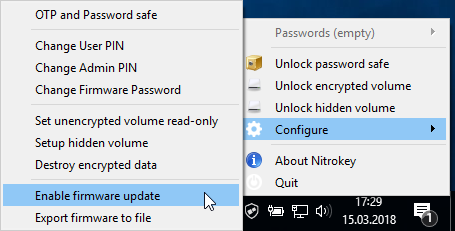
Right click on the icon of the Nitrokey App and go to “Configure” -> “Enable Firmware Update”. The default firmware password is 12345678.
Note
The Nitrokey Storage is not detected by Nitrokey App anymore once update mode got
activated. You have to proceed with the instructions described below
to make it work again.
Open a terminal and execute:
sudodfu-programmerat32uc3a3256serase
sudodfu-programmerat32uc3a3256sflash--suppress-bootloader-memfirmware.hex
sudodfu-programmerat32uc3a3256slaunch
# versions <0.7 of dfu-programmer use "start" instead of "launch"
whereas “firmware.hex” needs to be the path and file name of the firmware which you downloaded in step 2.
Download the Nitrokey App and the Nitrokey Update Tool. The Nitrokey Update Tool is currently available for macOS and Windows only.
Download the latest firmware “.hex” file from here. Older releases are here.
Right click on the icon of the Nitrokey App and go to “Configure” -> “Enable Firmware Update”. The default firmware password is 12345678.
Note
The Nitrokey Storage is not detected by Nitrokey App anymore once update mode got
activated. You have to proceed with the instructions described below
to make it work again.
Note
If you are using Microsoft Windows Build 1809 and Nitrokey Storage
Firmware 0.52 or lower, you need to use another system or if this is not
feasible use these instructions to
enable the Firmware Update mode.
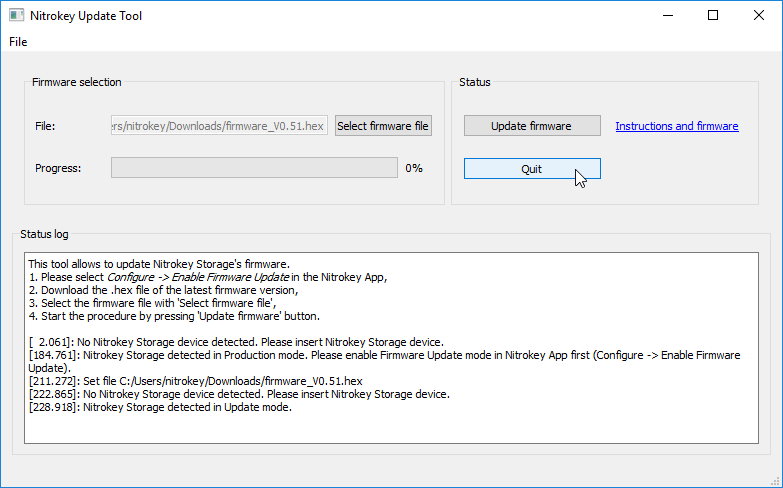
Start the Nitrokey Update Tool and click “Select firmware file”. Select the previously downloaded firmware “.hex” file. Click on “Update firmware” to start the update process. Your device should get detected by the Nitrokey App again as soon as the update is finished.
Download the Nitrokey App and the Nitrokey Update Tool. The Nitrokey Update Tool is currently available for macOS and Windows only.
Download the latest firmware “.hex” file from here. Older releases are here.
Right click on the icon of the Nitrokey App and go to “Configure” -> “Enable Firmware Update”. The default firmware password is 12345678.
Note
The Nitrokey Storage is not detected by Nitrokey App anymore once update mode got
activated. You have to proceed with the instructions described below
to make it work again.
Note
If you are using Microsoft Windows Build 1809 and Nitrokey Storage
Firmware 0.52 or lower, you need to use another system or if this is not
feasible use these instructions to
enable the Firmware Update mode.
Start the Nitrokey Update Tool and click “Select firmware file”. Select the previously downloaded firmware “.hex” file. Click on “Update firmware” to start the update process. Your device should get detected by the Nitrokey App again as soon as the update is finished.