Come iniziare
To access the OpenPGP smart card of the Nitrokey, install the package libccid. On Debian/Ubuntu based Distributions type in terminal: sudo apt-get update && sudo apt-get install libccid For Fedora please refer to this guide.
Once you plug in the Nitrokey, your computer will start the Keyboard Setup Assistant. Don’t run through this assistant but exit it right away.
Collega la tua Nitrokey al computer e conferma tutte le finestre di dialogo in modo che il driver della smart card USB venga installato quasi automaticamente. Windows potrebbe non riuscire a installare un driver aggiuntivo per la smart card. E” sicuro ignorare questo avvertimento.
Scaricare e avviare la Nitrokey App.
Use the Nitrokey-App to change the default User PIN (default: 123456) and Admin PIN (default: 12345678) to your own choices.
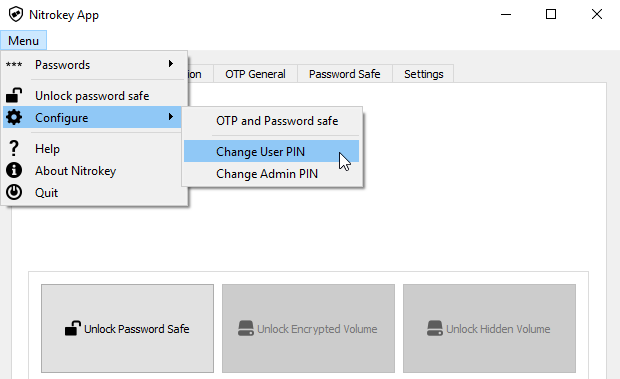
La Nitrokey è ora pronta all’uso.
Nota
Suggerimento
Nota: per molti casi d’uso descritti, è necessario avere le chiavi OpenPGP o S/MIME installate sul dispositivo (vedi sotto).
Creazione di chiavi con OpenPGP o S/MIME
Ci sono due standard ampiamente utilizzati per la crittografia delle e-mail. Mentre OpenPGP/GnuPG è popolare tra gli individui, S/MIME/x.509 è usato soprattutto dalle imprese. Se siete in dubbio su quale scegliere, dovreste usare OpenPGP.
To learn more about how to use OpenPGP for email encryption with the Nitrokey, please refer to chapter OpenPGP Email Encryption.
To learn more about how to use S/MIME for email encryption with the Nitrokey, please refer to chapter S/MIME Email Encryption.