ファームウェアの更新
このガイドでは、NitroPadのヘッドファームウェアをアップデートする方法を説明します。
本説明書は以下の場合に関連しています。
ヘッドのファームウェアをアップデートしたい。
OEMのファクトリーリセットをすでに実行しているが、TPMカウンターがリセットされていない。
準備
Connect your NitroPad to a power plug and load its battery to over 70%.
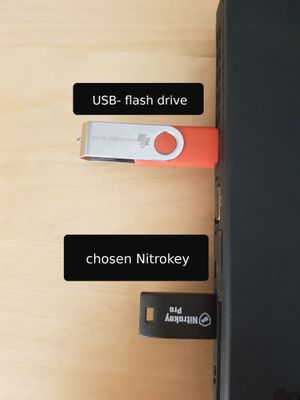
`最新ファームウェア<https://github.com/Nitrokey/heads/releases/latest>`__ をダウンロードし、USBドライブに保存してください。の場合:
ニトロパッドT430:
firmware-nitropad-t430-[version].npfニトロパッドX230:
firmware-nitropad-x230-[version].npfNitroPad NV41:
firmware-nitropad-nv41-[version].npf.ニトロパッド NS50:
firmware-nitropad-ns50-[version].npf
ファームウェア署名チェック
ファームウェアを確認するには、以下の手順に従ってください:
Download sha256sum.sig and store it.
Download and import Markus Meissner's gpg key.
Verify the signature.
gpg --verify sha256sum.sig sha256sum
このような出力を期待しているのだろう:
gpg: Signature made Wed 05 Jul 2023 04:30:34 PM CEST
gpg:                using RSA key C7E32619E2F71736F5910BB144CB2D868DD16BDA
gpg: Good signature from "Markus Meissner <meissner@nitrokey.com>" [ultimate]
gpg:                 aka "Markus Meissner <coder@safemailbox.de>" [ultimate]
This verifies the file.
手順
これが実際のアップデート手順です。通常、最初の2画面は表示されませんが、その場合は手順3から始めてください。
(オプション画面)「Ignore error and continue to default boot menu」を選択します。
(オプション画面)「Ignore error and continue to default boot menu」を選択します。
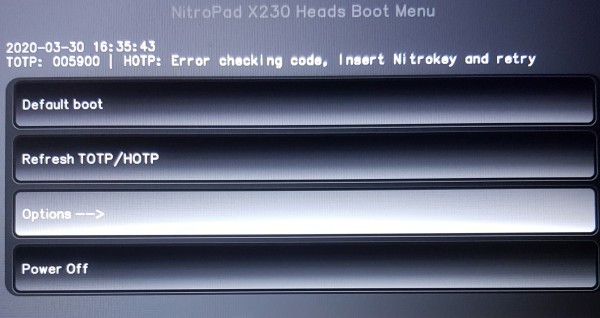
オプション」に進みます。
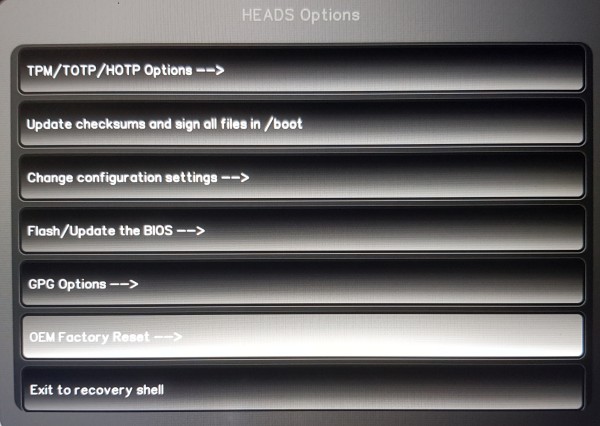
Flash/Update the BIOS "を選択します。
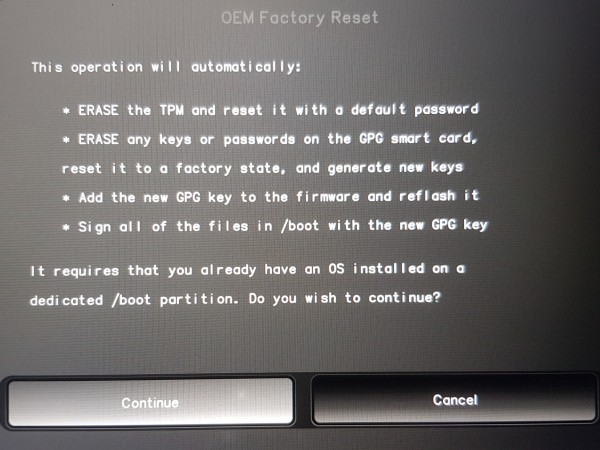
1つ目の選択肢を確認してください。
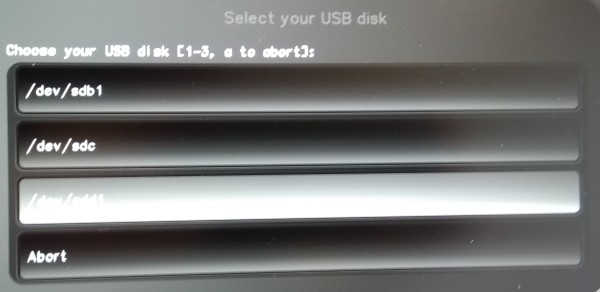
Enterで処理を確認します。
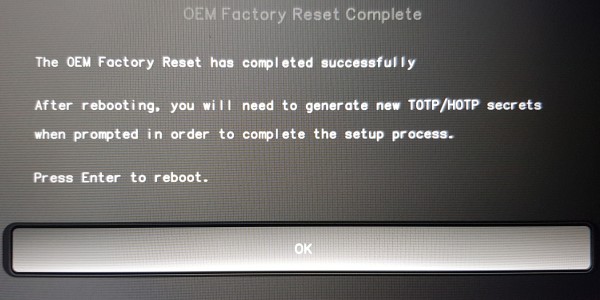
目的の.npfファイルを選択します。
Enterで処理を確認します。
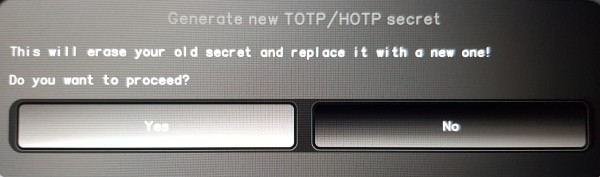
Enterで再起動を確認します。
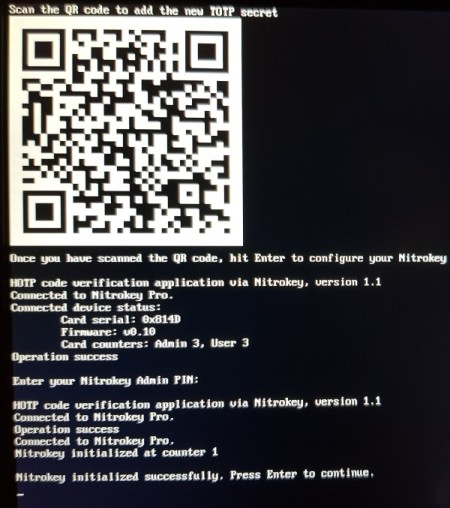
ファームウェアのアップデートに成功しました。
さらなるステップ
ヒント
There is a known issue with the NV41 that it can get stuck after the update in the boot splash(heads takes longer then 30s to get up). This solves it self after max 5 restarts (pressing the power button short). If not please contact our technical support.
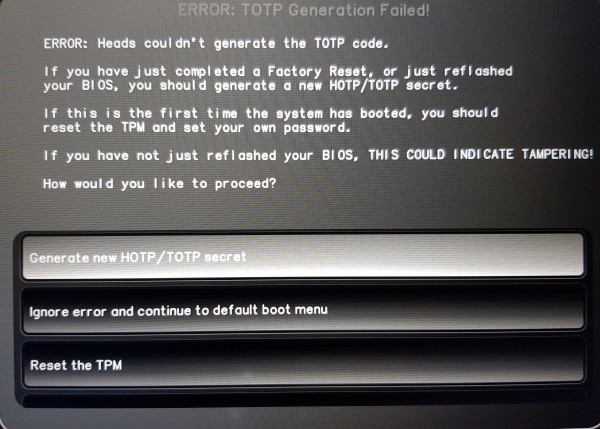
``ERROR: TOTP Generation Failed!``画面が表示された場合は、ファクトリーリセットの手順(左側のメニュー)に従ってください。