SSH Authentication with FIDO2
Compatible Nitrokeys |
|||||||
|---|---|---|---|---|---|---|---|
✓ active |
✓ active |
⨯ inactive |
⨯ inactive |
✓ active |
⨯ inactive |
⨯ inactive |
⨯ inactive |
SSH (Secure Shell) is a network protocol used to securely access and manage remote systems such as servers or code repositories. It uses cryptographic key pairs for authentication, allowing passwordless logins with strong security.
With a Nitrokey, the private SSH key is generated and stored directly on the device, so it never leaves the hardware. Each login requires you to touch the Nitrokey, adding a simple physical confirmation that protects against unauthorized access. For example, when connecting to a server, GitLab, or GitHub.
Non-Discoverable Credentials
Niewykrywalne poświadczenia są domyślnym typem poświadczeń tworzonym, gdy użytkownik rejestruje swój Nitrokey w systemie uwierzytelniania obsługującym FIDO2/WebAuthn. System uwierzytelniania przechowuje uchwyt klucza, podczas gdy klucz prywatny pozostaje bezpiecznie wewnątrz Nitrokey. Ta konfiguracja nie wykorzystuje przestrzeni dyskowej na Nitrokey i zależy od systemu uwierzytelniania, który dostarcza uchwyt klucza podczas logowania. PIN FIDO2 kontroluje dostęp do Nitrokey i autoryzuje wszystkie operacje związane z kluczami prywatnymi.
Discoverable Credentials
Identyfikowalne dane uwierzytelniające są przechowywane bezpośrednio w Nitrokey, w tym wszystkie informacje uwierzytelniające i metadane wymagane do uwierzytelnienia. Pozwala to na automatyczne znalezienie poświadczenia przez system uwierzytelniania bez konieczności podawania zewnętrznego uchwytu klucza i umożliwia uwierzytelnianie bez nazwy użytkownika. Identyfikowalne dane uwierzytelniające są chronione przez kod PIN FIDO2, który autoryzuje ich użycie i zapewnia, że tylko autoryzowany użytkownik może uzyskać do nich dostęp. Każde poświadczenie zajmuje zazwyczaj kilkaset bajtów bezpiecznej pamięci. Całkowita liczba poświadczeń zależy od modelu Nitrokey i wersji oprogramowania układowego, zazwyczaj od 25 do 100 wpisów.
Generating SSH Key
Insert the Nitrokey into your computer.
Open a terminal and create your SSH key. Replace
"your_comment"with a label to identify it (e.g., „Nitrokey GitLab”). By default, the key is created as a non-discoverable credential. In this case, a local key handle is stored in ~/.ssh/ while the private key remains on the Nitrokey. This means the key is tied to the system where it was generated, since the local key handle file is required for authentication. Use the -O resident option to create a discoverable credential. In this case, the credential is stored on the Nitrokey, making it portable and usable across different systems without copying any local files.Non-discoverable credential:
ssh-keygen -t ed25519-sk -C "your_comment"Discoverable credential:
ssh-keygen -t ed25519-sk -O resident -C "your_comment"Informacja
Discoverable credentials can later be listed and imported on another system with:
ssh-keygen -KDuring key generation, you may also be asked to set a passphrase. This passphrase encrypts the local key handle stored in
~/.ssh/(not the private key on the Nitrokey, which always stays securely inside the device). The passphrase is different from the FIDO2 device PIN. The PIN protects the physical key itself, while the passphrase protects your local SSH public key file. We recommend to use a passphrase to protect non-discoverable keys only.Gdy pojawi się pytanie o ścieżkę do pliku, zaakceptuj domyślną opcję (
~/.ssh/id_ed25519_sk) lub wybierz niestandardową nazwę, taką jakid_ed25519_sk_gitlab.Jeśli Nitrokey miga, potwierdź operację dotykając go.
Ostatecznie zostaną utworzone następujące pliki. Nazwy plików mogą się różnić, jeśli określono niestandardową nazwę podczas generowania klucza.
~/.ssh/id_ed25519_sk→ uchwyt do klucza prywatnego (przechowywanego bezpiecznie na Nitrokey)~/.ssh/id_ed25519_sk.pub→ plik klucza publicznego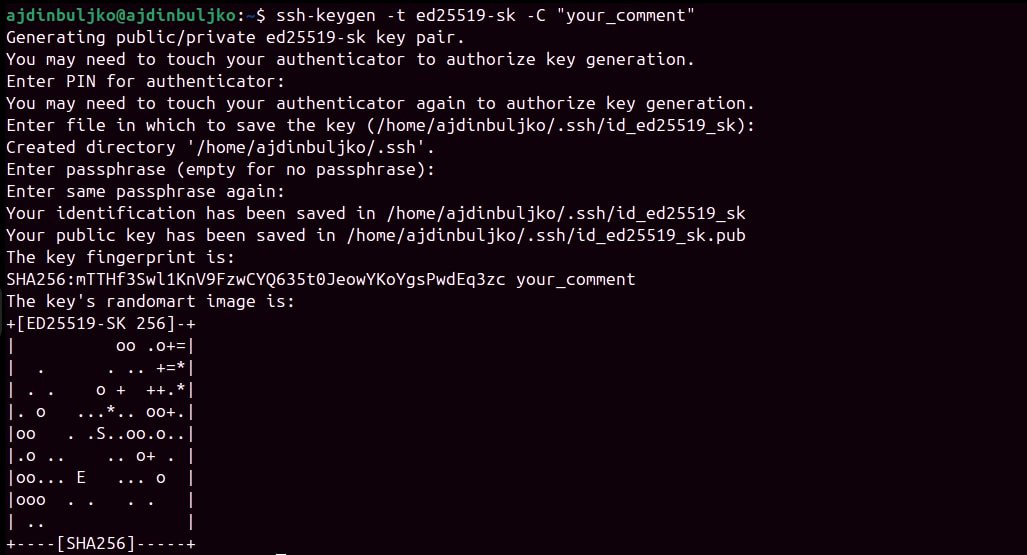
Adding Your Public Key
Po wygenerowaniu pary kluczy SSH, klucz publiczny musi zostać dodany do usługi lub serwera, do którego chcesz uzyskać dostęp.
Display your public key:
cat ~/.ssh/id_ed25519_sk.pubPrzykładowe wyjście (nie używaj tego klawisza):
sk-ssh-ed25519@openssh.com AAAAGnNrLXNzaC1lZDI1NTE5QG7wZW4zc2guY29tAAAAILeZl6r07HV4i1rK07OfLqD3J4IzX2q0lB6Ok0pdxoG5AAAABHNzaDo= your_comment
Copy the output and add it to your account’s SSH key settings.
See GitLab or GitHub for detailed steps.
Aby włączyć zdalny dostęp do serwera SSH, dodaj swój klucz publiczny do pliku
~/.ssh/authorized_keysswojego konta użytkownika na serwerze SSH.